


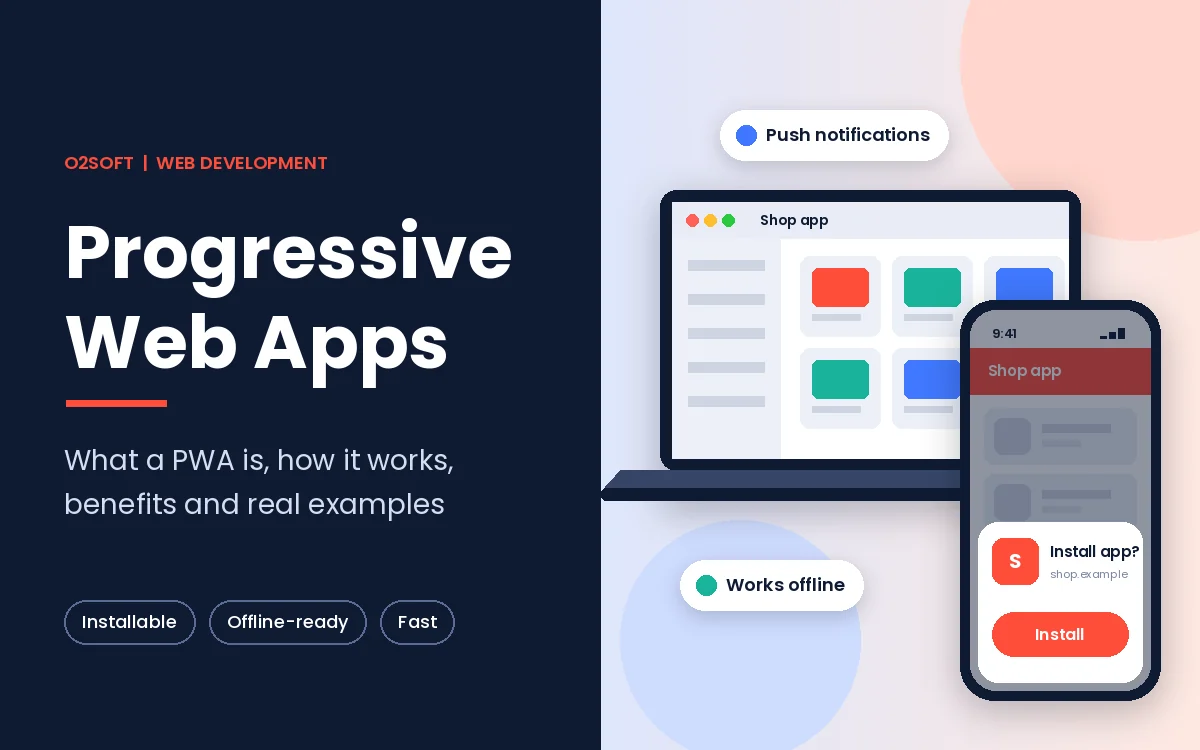
Progressive Web Apps are websites that a person can install on a phone or computer and open in their own window, with no app store involved. A service worker caches files so the app loads quickly and keeps working on a weak connection. A web app manifest tells the browser the app's name, icons and display mode. Companies use PWAs for online stores, travel booking, news, media players and internal dashboards, mainly to cut development cost by reaching every device from one codebase. Once a PWA is installed, its home screen icon, app badges and push notifications bring users back without a separate native app.
This guide explains what a PWA is and how its three core parts, HTTPS, the manifest and the service worker, work together. It then walks through display modes, current capabilities, the 7 main benefits and a PWA vs native comparison. The final sections cover real company results, SEO, a 7-step build process and the limits worth planning around.
What Is a Progressive Web App?
A progressive web app (PWA) is a website that a browser can install as an app, with its own window, a home screen icon and optional offline support. First-time visitors use it in a normal browser tab, and regular users install the same code as an app, so nobody downloads a store package to get started.
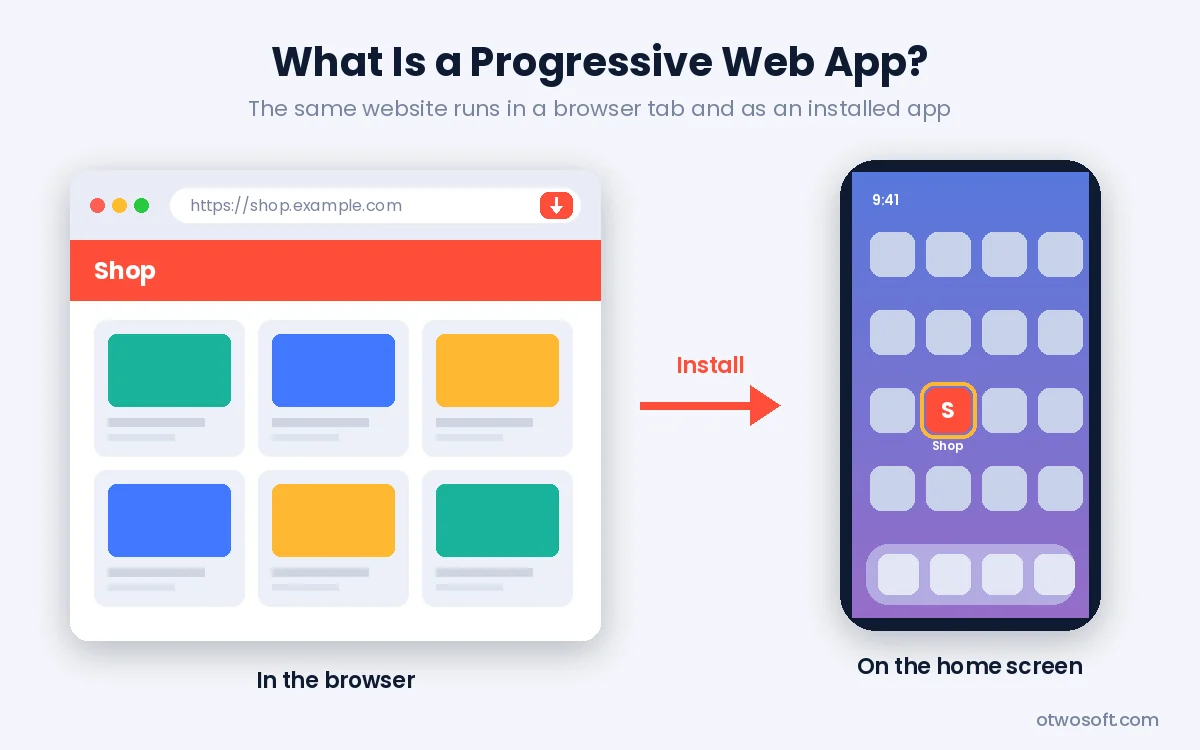
The word "progressive" comes from progressive enhancement. Every visitor gets a working website, and browsers that support newer APIs add app features on top of it, such as installation, offline caching or push notifications. Designer Frances Berriman and Chrome engineer Alex Russell coined the term in 2015. Alex Russell's original essay describes apps that leave the browser tab without losing the reach of the web.
The same idea appears under 4 other names: progressive web application, installable web app, progressive mobile application and, in casual use, progressive app. So the answer to "what is a progressive web application" matches the answer for the shorter name. In plain terms, a PWA (progressive web app) is still a website at its core, so people can share it with a link and find it in search.
What Does PWA Stand For?
PWA stands for progressive web app in web development, though in US history the same letters refer to the Public Works Administration. When people ask "what is a PWA" or "what is PWA," they mean a website that meets a browser's install requirements and behaves like an installed app.
How Does a PWA Work?
A PWA works through 3 building blocks that sit on top of a normal website: a secure HTTPS connection, a web app manifest and a service worker. The browser checks these parts, offers to install the site and then runs it in an app window.
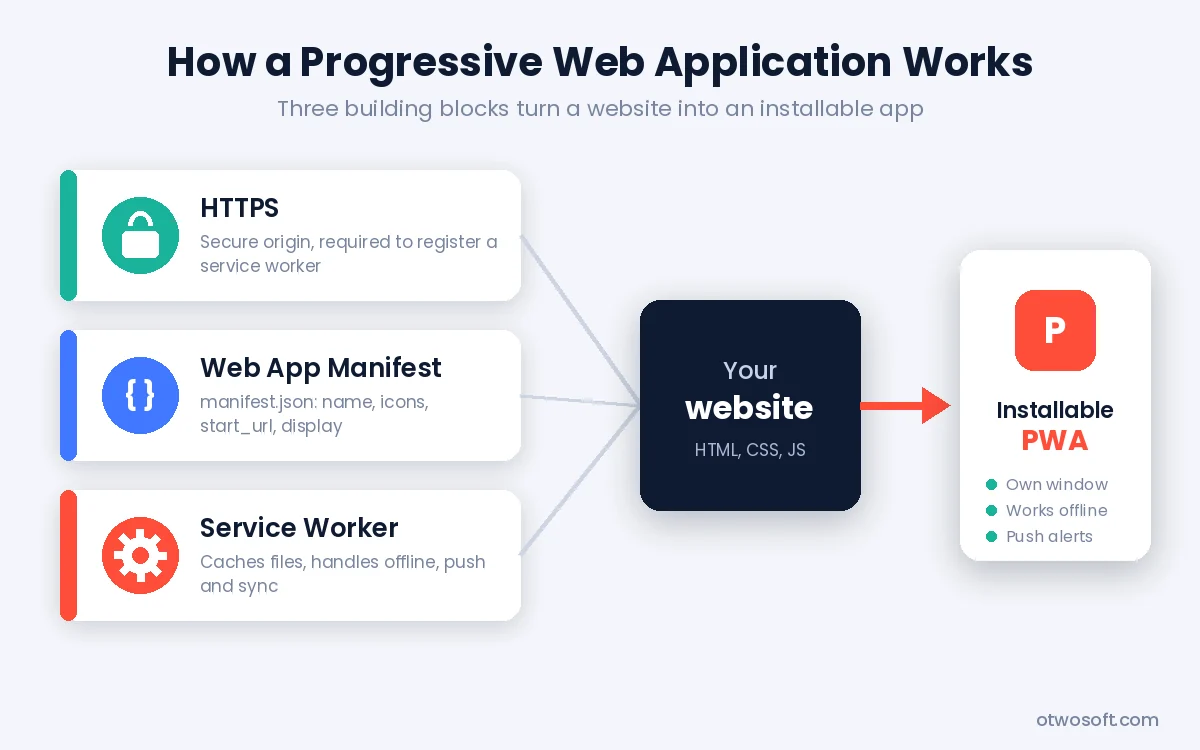
- HTTPS encrypts traffic between the user and the server. Browsers refuse to register a service worker on an insecure origin, with localhost as the only exception for testing.
- The web app manifest is a JSON file that lists the app's name, short name, icons, start URL, theme color and display mode. The W3C Web App Manifest specification defines every member the browser reads.
- The service worker is a JavaScript file that runs in the background, separate from the page itself. It intercepts network requests and decides what to serve from the cache. The same script handles push messages, background sync and the offline experience.
How the Service Worker Handles Caching
A service worker moves through 3 lifecycle stages: registration, installation and activation. During installation, most teams use service worker precaching to store the app shell, which is the HTML, CSS, JavaScript and icons needed to draw the interface. Content then loads into that shell, so repeat visits paint almost instantly even on a slow network. This pattern is called app shell architecture.
Runtime caching patterns decide what happens with every later request. These are the 4 caching strategies developers use most:
- Cache first serves the stored copy and only goes to the network when nothing is cached, which suits fonts, logos and versioned scripts.
- Network first tries the server and falls back to the cache when the request fails, which suits account pages and order history.
- Stale-while-revalidate returns the cached response at once, then fetches a fresh copy in the background for the next visit.
- Network only bypasses the service worker's Cache API and sends the request straight to the server. It suits payments, logins and data that must never be out of date. Sensitive responses still need the right HTTP cache headers and server-side validation.
The W3C Service Workers specification covers the full lifecycle along with the Cache API that stores these responses.
What Makes a Good Progressive Web App?
A good progressive web app is fast, installable, reliable on poor connections and integrated with the device it runs on. Those 4 qualities decide whether people keep the icon on their home screen or delete it after a week.
Speed comes first, since slow loads lose users before any app feature has a chance to matter. Small JavaScript bundles and a cached app shell solve most speed problems. Installability means the manifest and icons are complete, so the browser can offer the app at a sensible moment. Reliability means a user who loses signal still sees useful content or a clear message instead of the browser's default error page. Integration covers the details that make a PWA feel more like an app. Examples include an app badge for unread items, app shortcuts on the icon's long-press menu and a share target that receives files from other apps.
Offline UX design guidelines from browser teams repeat one rule: never show a blank screen. The minimum is an offline fallback page, a small cached HTML page that the service worker returns when a navigation request fails. Stronger PWAs keep recently viewed products or articles readable offline and queue form submissions until the connection returns. Plan these states early with a UI/UX design team, since offline screens, install prompts and update notices deserve the same attention as the home page.
How Does PWA Installation Work?
A PWA installs when the browser decides the site meets its install criteria and then shows an install option in the address bar, the menu or a prompt. The criteria differ by browser, and they have become simpler over the past few years.
Chromium browsers such as Chrome, Edge, Samsung Internet and Opera need HTTPS and a manifest with a few required fields. Those fields are a name or short name, 192px and 512px icons, a start URL and a display value of standalone, fullscreen or minimal-ui. Chrome's developer blog confirms that a service worker with a fetch handler is no longer required for installing from the menu. The change arrived in Chrome 108 on Android and Chrome 112 on desktop.
Safari handles installation differently and never shows an automatic prompt. On iPhone and iPad, users tap Share, then Add to Home Screen. The WebKit blog explains that from iOS 26 and iPadOS 26, every site added this way opens as a web app by default. That change gives a site its own window, but offline support, push and other PWA features still depend on the manifest and service worker. On a Mac, Safari 17 and later lets users install a site from the File menu with Add to Dock.
How to Provide Your Own In-App Install Experience
To provide your own in-app install experience, listen for the beforeinstallprompt event in Chromium browsers, store it, then call prompt() when the user taps your own Install button. This deferred approach shows the offer at a sensible moment, such as after a second visit or a completed order, instead of on the first page view. Adding screenshots and a description to the manifest turns the browser dialog into a Richer Install UI that looks closer to an app store listing. Safari does not fire this event, so iOS users need a short visual hint that points them to the Share menu.
PWA Display Modes: Fullscreen vs Standalone vs Minimal UI
The display member of the manifest controls how much browser interface surrounds an installed PWA, and it accepts 4 values: fullscreen, standalone, minimal-ui and browser.
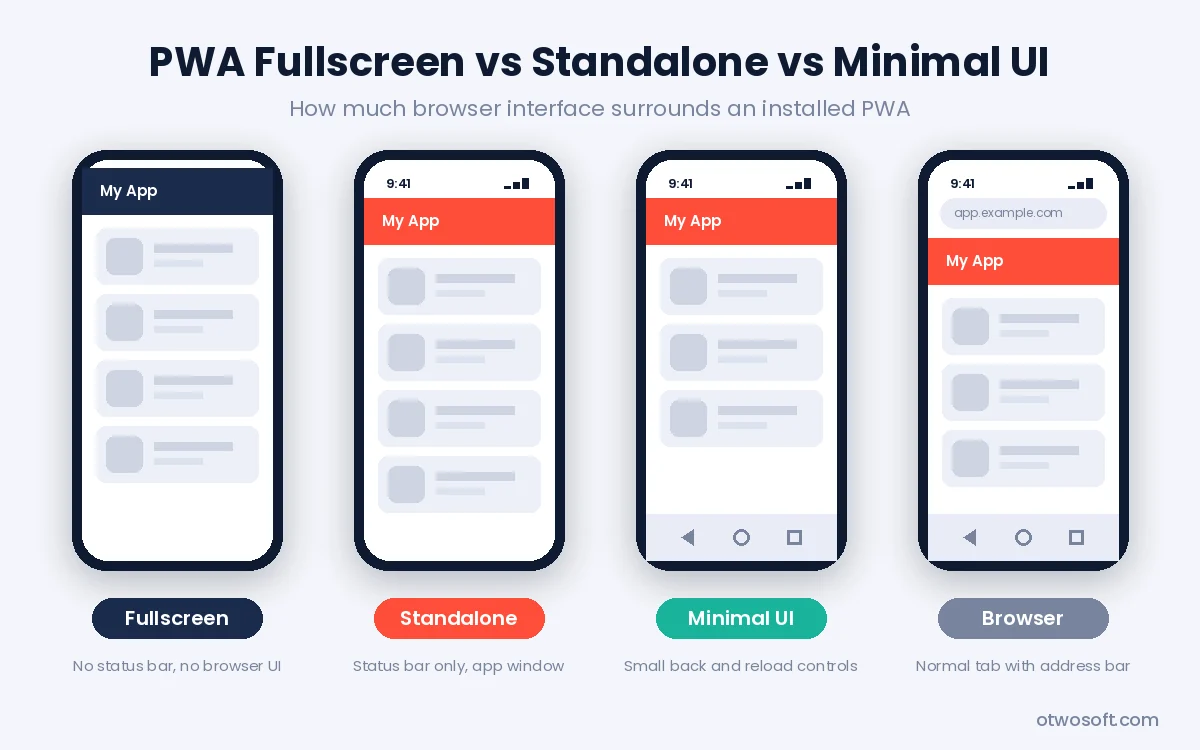
Standalone is the right choice for most apps. The app opens in its own window with no address bar or browser buttons, while the device's status bar stays visible. This standalone display mode suits online stores, dashboards, booking tools and messaging apps.
Fullscreen hides the status bar as well and gives the app every pixel of the screen. The PWA fullscreen vs standalone decision depends on the content. Use fullscreen for games, video players and kiosk displays. Standalone fits anything people check alongside their notifications and clock.
Minimal-ui keeps a small set of browser controls, usually back and reload buttons. A minimal UI PWA makes sense for content sites and multi-page tools where users expect a back button, but where a full address bar would waste space.
Browser opens the app in a normal tab, so the site does not present itself as an installed app at all.
Two newer manifest options build on these values. The display_override member lists preferred modes in order with fallbacks, and the window-controls-overlay value lets desktop PWAs place their own content in the title bar area. Splash screen theming on Android comes from the manifest's name, background_color and icons, which makes those fields part of the first impression.
What Can a PWA Do Today?
A PWA today can handle most of what business apps need through capabilities that enable app experiences without native code. Support depends on the browser, and Chromium browsers on Android and desktop offer the widest set. Browser and operating system support varies by feature and version, so check compatibility against your users' devices before committing to a PWA-only plan. The most useful capabilities fall into 5 groups:
- App integration covers app badges, app shortcuts, push notifications, the Web Share API and access to contacts from the address book on Android.
- File handling lets a PWA open one or multiple files, save a file, open a directory and receive files shared from other apps. Drag and drop works for both files and directories, as does opening files straight from the file explorer.
- Clipboard access lets an app copy text and images, then paste text, images and files through the Async Clipboard API.
- Media features include recording audio from the microphone, recording the user's screen, custom media notifications with lock-screen controls and Picture-in-Picture for video.
- Background work includes background sync, which retries failed requests once the connection returns, and periodic background sync, which refreshes content on a schedule. Both sync APIs work only in Chromium browsers today.
Hardware access is where browsers differ most. Camera and microphone access through getUserMedia works in every major browser once the user grants permission. Web Bluetooth, WebUSB and Web Serial work in Chromium browsers but not in Safari or Firefox. A product that must talk to a Bluetooth device on an iPhone still needs a native app.
Widgets are still an experimental capability, limited to Microsoft Edge 108 and later on the Windows 11 Widgets Board. Those widgets are built from Adaptive Card templates declared in the manifest. Home screen widgets on Android and iOS remain limited to native apps.
Many teams pair these capabilities with AI features such as chat assistants, smart search or document processing. Our AI development services add those features to web apps that are already in production.
Progressive Web App Benefits
Progressive web app benefits fall into 7 main areas, and most of them come from shipping one web codebase instead of separate apps for each platform.
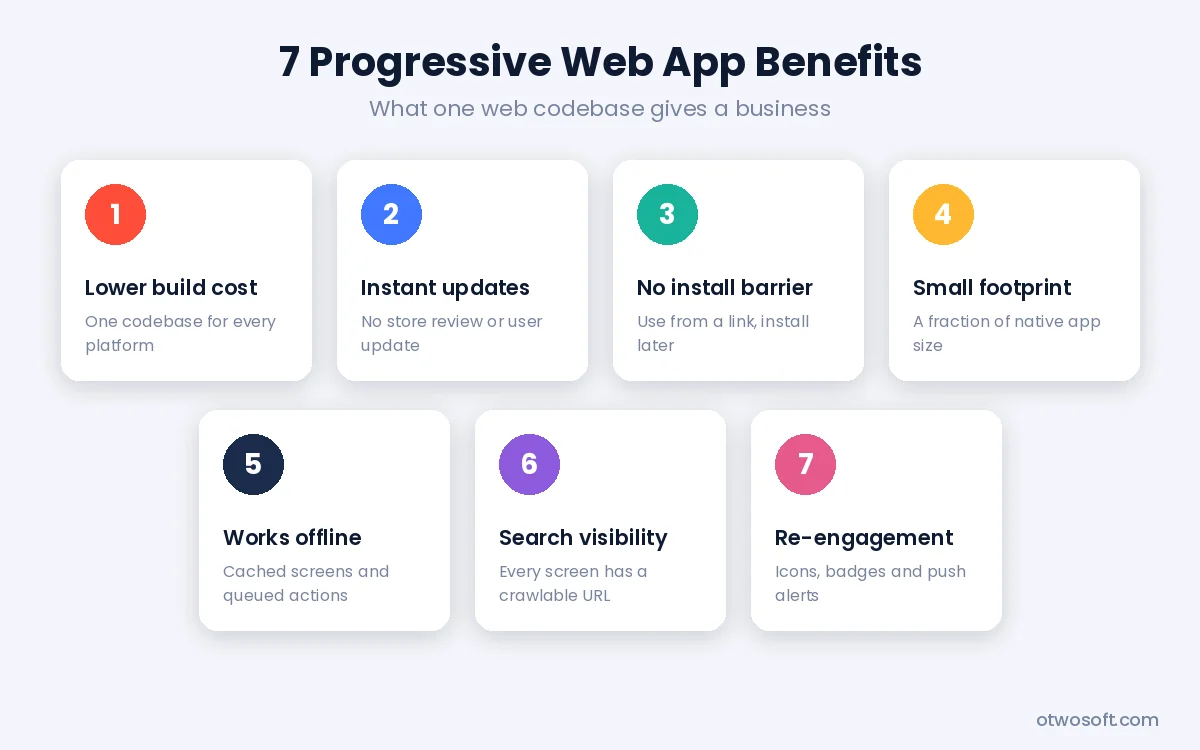
- Lower build cost. One team and one codebase cover Android, iOS, Windows, macOS and the web, where native development needs 2 or 3 separate projects.
- Instant updates. A deploy to your server reaches every user on the next launch, with no store review and no waiting for people to update.
- No install barrier. A visitor can use the app straight from a link and install it later, which removes the store detour where many mobile users drop off.
- Small footprint. Twitter told CNET that its Twitter Lite PWA needed under 3 percent of the storage its native apps required.
- Offline and low-signal use. Cached screens and queued actions keep the app usable on trains, in warehouses and in areas with poor coverage.
- Search visibility. Each important screen can have its own crawlable URL, which gives search engines something to index, while a native app screen has no web address at all.
- Re-engagement. A home screen icon, app badges and push notifications bring users back, as the Rakuten 24 retention results below show.
For most companies, the benefits of progressive web app adoption appear first in budget and release speed, while engagement gains follow once installs and notifications are in place.
PWA vs Native App: Which Should You Build?
Choose a PWA for content, forms, commerce or dashboards, and choose a native app for deep hardware access, heavy background work or App Store distribution. The table compares both options on the points that usually decide a project.
| Factor | PWA | Native app |
|---|---|---|
| Codebase | One web codebase for every platform | Separate iOS and Android code, or a cross-platform framework |
| Distribution | A URL, plus optional Google Play and Microsoft Store listings | Apple App Store and Google Play |
| Updates | Live on the next launch | Store review, then a user update |
| Offline support | Yes, through the service worker | Yes, with full control |
| Push notifications | Android and desktop; iOS 16.4+ only when installed to the Home Screen | All platforms |
| Hardware access | Camera, microphone and location everywhere; Bluetooth and USB only in Chromium browsers | Full access |
| Search indexing | Yes, when each view has a crawlable URL and renderable content | No, apart from store listings and deep links |
| Typical cost | Lower | Higher |
A native build still makes sense for fitness trackers that read wearables over Bluetooth and for apps that run long background tasks. The same goes for brands whose audience expects to find them by searching the App Store. For those products, our mobile app development team builds native iOS and Android apps or cross-platform apps with React Native.
Timeline matters as much as features when you compare the two routes. Our guide on how long a mobile app build takes breaks the native schedule down stage by stage, which gives you a fair baseline for a PWA estimate.
PWA Example: Real Results From Companies
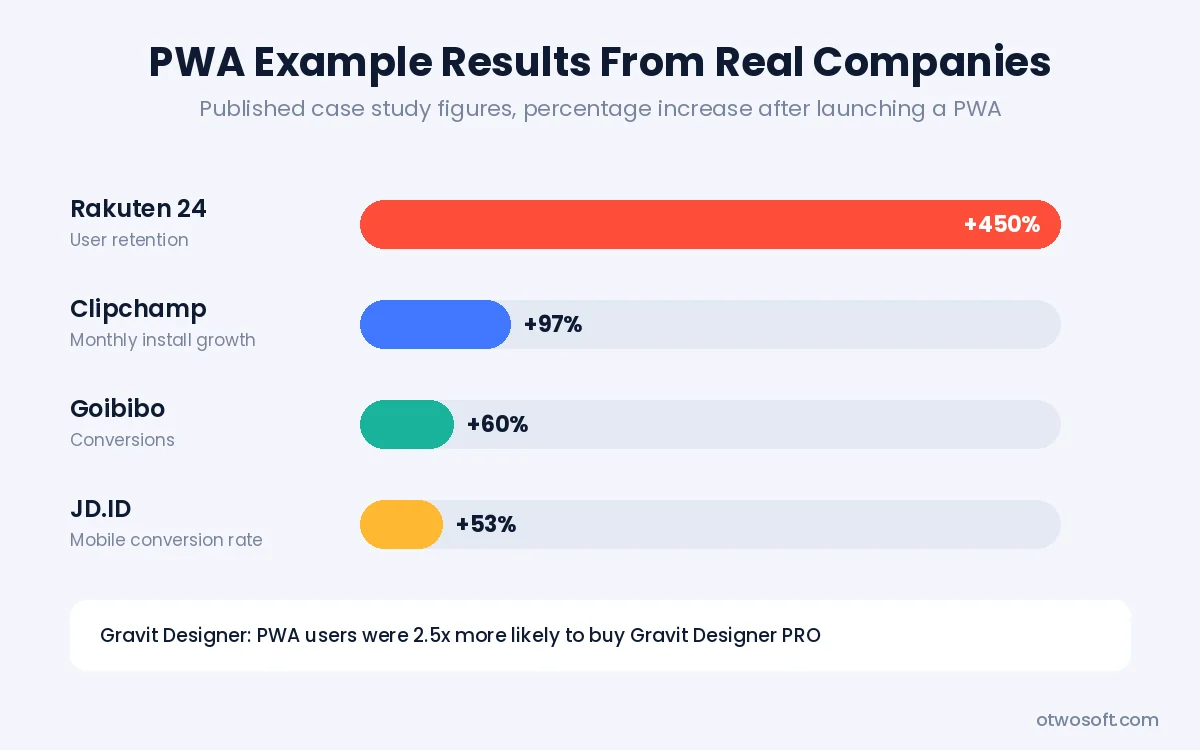
Each PWA example below comes with a measured result. Published case studies show PWAs lifting conversions by 53% to 60% and user retention by up to 450%. Most of these figures come from case studies the companies published with Google's Chrome team, measured against each company's own previous site:
- Rakuten 24 measured a 450% jump in visitor retention over one month, comparing users of its installed PWA with its previous mobile web flow.
- Clipchamp saw installs of its video editor PWA grow 97% per month after launch.
- Goibibo, an Indian travel booking platform, improved conversions by 60% compared with its previous web flow.
- JD.ID lifted its overall mobile conversion rate by 53% through caching strategies, installation and push notifications, with a 200% rise among users who installed the PWA.
- Gravit Designer reported that its PWA users were 2.5 times more likely to buy Gravit Designer PRO.
- Tinder cut load time from about 12 seconds to under 5 seconds with a PWA that was 90% smaller than its Android app. Addy Osmani's performance case study documents the build.
- Trivago recorded a 150% increase in people adding its PWA to the home screen, which led to a 97% rise in clickouts to hotel offers. Think with Google published the Trivago figures.
Excalidraw, the open-source whiteboard tool, went a step further and retired its Electron desktop app in favor of the web version. The German broadcaster ZDF built a video PWA with offline viewing and dark mode. Each result reflects one company's product, audience and starting point, so treat these numbers as evidence of what is possible rather than a forecast. You can see the web and mobile products our team has shipped in our case studies.
SEO for Progressive Web Apps
SEO for a PWA follows the usual technical SEO rules, with 6 extra checks that come from the way PWAs load and cache content. Search engines first crawl a URL, then render its JavaScript, then decide whether to index it, and a PWA can trip at any of those three stages.
- Render content on the server or at build time. Google can render JavaScript, but a single-page application (SPA) that builds every page in the browser waits for that rendering step. Server-side rendering or static generation puts the content in the first HTML response, which removes the delay.
- Give each important view a crawlable URL. Use the History API for clean paths such as /products/blue-shoes instead of hash fragments. Each URL should return meaningful content when someone requests it directly.
- Return correct HTTP status codes. Missing products should return a real 404 from the server instead of a 200 page that says "not found," which search engines treat as a soft 404.
- Keep stale HTML out of the cache. Cache-first navigation routing can serve outdated pages after a release, so most teams use network-first or stale-while-revalidate for HTML and cache-first for static assets.
- Watch Core Web Vitals. Precache critical routes and keep JavaScript bundles small so Largest Contentful Paint and Interaction to Next Paint stay in the good range.
- Keep standard technical SEO in place. Titles, meta descriptions, self-referencing canonical tags, an XML sitemap and structured data matter as much in a PWA as on any other website.
Test the result with the URL Inspection tool in Google Search Console, which shows the rendered HTML Google actually sees for a page. A URL is the starting point for indexing, not a promise of it, so rendered output, status codes and internal links all need checking.
Our web technology stack of React, Next.js, Vue.js and Node.js supports server-side rendering out of the box. Server-side rendering makes these checks part of the build instead of a later fix.
Building a Progressive Web App in 7 Steps
To build a progressive web app, start with a fast, responsive website and add the PWA layer in 7 steps. Progressive web app development rarely means a rewrite, and most progressive web app developers add these parts to an existing site.
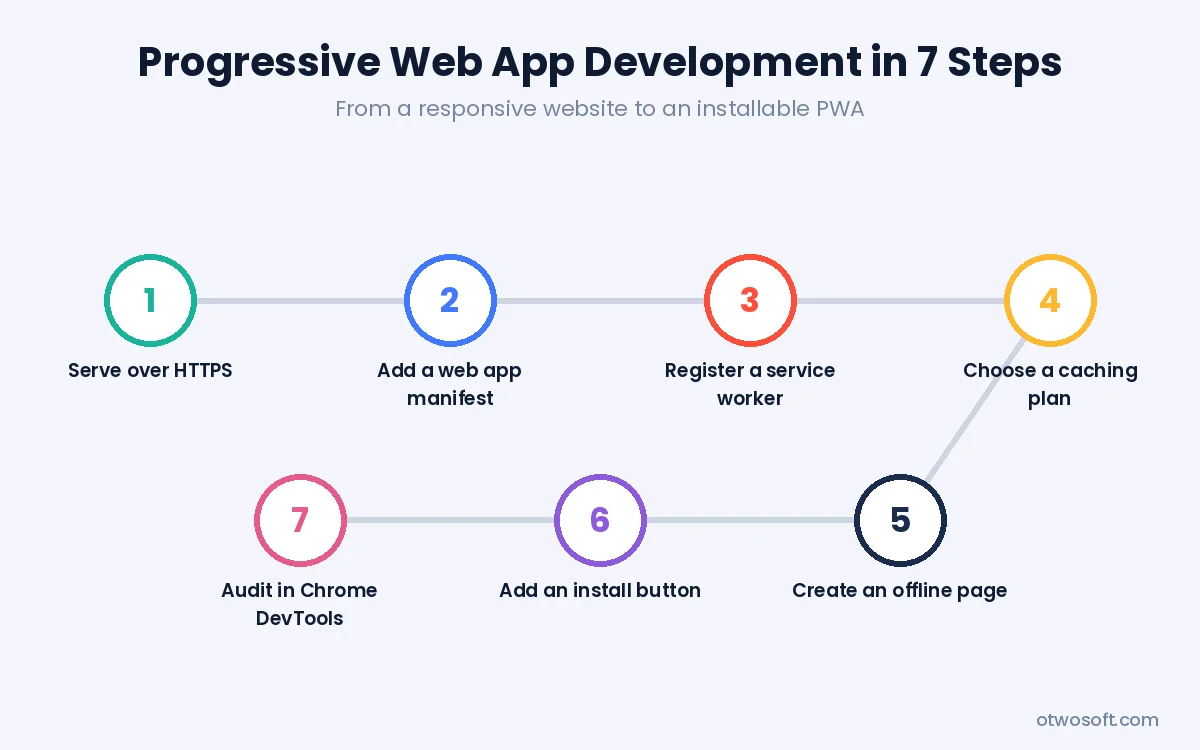
- Serve every page over HTTPS, including images, scripts and API calls, so the browser trusts the origin.
- Add a web app manifest with name, short_name, start_url, display, theme_color, background_color and icons at 192px and 512px, then link it from every page with
<link rel="manifest">. - Register a service worker from your main script after the page has loaded, so registration does not compete with the first render.
- Choose a caching plan. Precache the app shell during installation, then apply runtime caching per route. Libraries such as Workbox, vite-plugin-pwa and the PWA plugins for Next.js and Angular generate most of this code.
- Create an offline fallback page and test it by switching Chrome DevTools to Offline mode.
- Add your own install button with beforeinstallprompt, an iOS hint and a clear "new version available" message that appears when the service worker updates.
- Audit the result in the Application panel of Chrome DevTools, which reports manifest errors, installability problems and service worker state. Google removed the PWA category from Lighthouse in 2024, so Lighthouse now covers performance, accessibility, best practices and SEO while DevTools handles installability.
Short build cycles catch caching and update problems before launch. Our delivery process runs two-week cycles with a working build at the end of each, which suits PWA work where offline behavior needs testing on real devices.
Example Web App Manifest
A minimal manifest for an online store looks like this. Save it as manifest.webmanifest at the site root, then reference it from the <head> of every page.
{
  "name": "Example Shop",
  "short_name": "Shop",
  "id": "/",
  "start_url": "/?source=pwa",
  "scope": "/",
  "display": "standalone",
  "theme_color": "#ff4d3a",
  "background_color": "#ffffff",
  "icons": [
    { "src": "/icons/192.png", "sizes": "192x192", "type": "image/png" },
    { "src": "/icons/512.png", "sizes": "512x512", "type": "image/png" },
    { "src": "/icons/maskable-512.png", "sizes": "512x512", "type": "image/png", "purpose": "maskable" }
  ]
}
Example Caching Strategy for Pages
This service worker snippet applies network-first to page navigations and falls back to a cached offline page. Static assets can then use cache-first through a separate route.
self.addEventListener('install', (event) => {
  event.waitUntil(
    caches.open('pages-v1')
      .then((cache) => cache.add('/offline.html'))
  );
});

self.addEventListener('fetch', (event) => {
  if (event.request.mode === 'navigate') {
    event.respondWith(
      fetch(event.request).catch(() => caches.match('/offline.html'))
    );
  }
});
Planning Scope for Multiple PWAs
Companies building multiple progressive web app projects on the same domain should give each app its own path, manifest id and matching scope. The scope decides which URLs open inside each installed app, so overlapping scopes send users to the wrong window. Sites spread across multi-origin setups need extra planning, since one PWA's scope cannot include another origin without the experimental scope_extensions manifest member. More guides on these topics sit in our web development articles.
What Are the Limitations of a PWA?
A PWA has 5 real limitations, and most of them sit on Apple platforms or in older browser engines.
- No install prompt on iOS. iPhone and iPad users must find Add to Home Screen themselves, so the app needs to show them where it is.
- Push only after install on iPhone. The WebKit blog post on Safari 16.4 explains that web push on iOS works for web apps added to the Home Screen, from iOS 16.4 onward.
- Missing hardware APIs. Safari and Firefox do not support Web Bluetooth, WebUSB, Web Serial or periodic background sync.
- Storage that can be cleared. Browsers can remove cached data for apps that go unused for long periods, so offline storage is not permanent.
- Limited Firefox desktop support. Firefox does not install PWAs from their manifest on desktop the way Chromium browsers do. The Firefox 143 release notes add a separate feature that pins sites to the Windows taskbar as simple web app windows.
Common PWA Mistakes
Watch for these 5 mistakes during the build:
- Caching HTML with a cache-first strategy, which leaves users stuck on an old version after every release.
- Shipping without an offline fallback, so a dropped connection shows the browser's default error page.
- Asking for installation or notification permission on the first visit, before the user has a reason to say yes.
- Ignoring the update flow, so a new service worker waits silently until every open tab closes.
- Publishing an incomplete manifest with missing icon sizes or a wrong start_url, which blocks installation.
Can You Publish a PWA in App Stores?
Yes, Google Play, the Microsoft Store and the Samsung Galaxy Store accept PWAs, but the Apple App Store does not accept a PWA on its own.
For Google Play, the PWA is wrapped in a Trusted Web Activity (TWA), an Android shell that opens your site full screen. Chrome and other browsers that support Trusted Web Activities render the app inside that shell. Google's Bubblewrap command-line tool generates the Android project and the signed app bundle. A Digital Asset Links file (assetlinks.json) on your domain proves that you own the site. The Microsoft Store accepts PWAs packaged as MSIX, which Microsoft's PWABuilder tool generates from your manifest. Apple requires a native app bundle, so teams wrap the PWA in a native shell. That build must then pass App Store guideline 4.2, which rejects apps that only repackage a website without real app functionality.
Frequently Asked Questions
What does PWA stand for in history and in Outlook?
In US history, PWA stands for the Public Works Administration, a New Deal agency created in 1933 to fund large construction projects such as dams, bridges and schools. In Outlook, PWA refers to the progressive web app version of Outlook on the web. You can install it from Microsoft Edge or Chrome so it opens in its own window. Several other Microsoft 365 web apps can be installed the same way.
What are progressive web applications used for?
Progressive web applications are used for online stores, travel booking, news and media, streaming players, field service tools and internal dashboards. They fit any product that needs to reach mobile and desktop users from one codebase without depending on app store approval.
Can a PWA work offline?
Yes, a PWA can work offline when its service worker caches the pages and data the user needs. The amount that works offline depends on the caching plan, from a single fallback page to a fully usable app that syncs changes later.
Do PWAs work on iPhone?
Yes, PWAs work on iPhone and iPad through Safari and other iOS browsers that support Add to Home Screen. Installed web apps on iOS 16.4 and later can send push notifications, while Bluetooth access and automatic install prompts remain unavailable on iOS.
Can a PWA access the camera and Bluetooth?
Yes, a PWA can access the camera in every major browser through the getUserMedia API after the user grants permission. Bluetooth access through Web Bluetooth works only in Chromium browsers such as Chrome and Edge, so it is not available on iPhone.
Is a PWA cheaper than a native app?
Yes, a PWA usually costs less than separate iOS and Android apps, since one team maintains one codebase and every release skips store review. The final cost depends on features, integrations and design scope, so a short discovery phase gives the most reliable estimate.
Can PWAs have widgets?
Yes, on Windows only, and the feature is still experimental. Microsoft Edge lets installed PWAs add widgets to the Windows 11 Widgets Board, while home screen widgets on Android and iOS remain limited to native apps.
Is a PWA the Right Choice for Your Product?
A PWA is the right choice for commerce, content, booking and dashboard products, while native fits products that need deep hardware access or App Store presence. Progressive Web Apps give a business one codebase that runs as a website, installs like an app and works offline through a service worker. HTTPS and the web app manifest complete the core parts, while display modes, install prompts and caching strategies decide how app-like the final product feels.
O2SOFT has built web, mobile and custom software for founders and executives since 2012.
Our PWA development services cover the manifest, service worker, offline UX and SEO from the first sprint.
Older systems often hold a product back before the front end does. Our custom software development team modernizes legacy back ends and APIs so a new PWA has reliable data to work with.
If you are comparing vendors for the build, these six checks for choosing a technical partner help you ask the right questions before you sign.
Every progressive web application development service we run starts with a short discovery call, so book a free consultation with the engineers who would build your app.