


Productivity tools are software applications that help a person or a team plan work, manage time, communicate and finish tasks with less wasted effort. Most of them work the same way: they capture what needs doing, organize it into lists, boards or calendars, then send reminders until each item is closed.
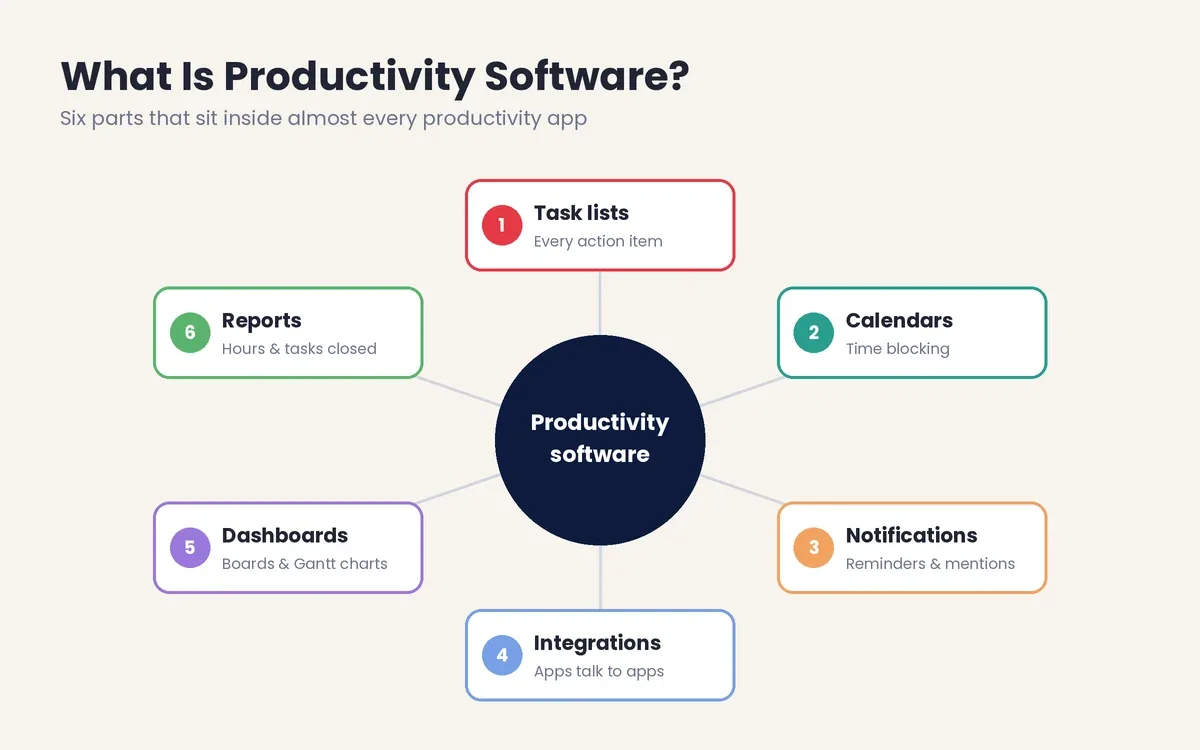
The main benefits are fewer missed deadlines, less time lost to switching between apps and a clear record of where the hours go. People use these apps to run daily to-do lists, plan projects, track billable time, block distractions, write documents and automate repeat steps between other apps. Under the hood, nearly every app shares the same 6 parts: task lists, calendars, notifications, integrations, dashboards and reports.
This guide opens with the definition of productivity software and its 9 categories, followed by a comparison table of 25 apps with short reviews of each. Later sections cover the best free options, picks for small businesses, Windows and Mac choices, recommendations by role, proven techniques, measurable benefits and a 7-step method for building your own stack.
What Is Productivity Software?
Productivity software is any application that helps people produce work faster or with fewer errors, from spreadsheets to task managers and AI assistants. The term started with office programs such as word processors, but it now covers every app built to save time at work.
A productivity platform goes one step further than a single app. It combines several jobs, such as tasks, documents, chat and reporting, inside one workspace, so a team does not have to jump between five separate logins. Notion and Microsoft 365 are common examples of this all-in-one approach.
How Do Productivity Apps Work?
Productivity apps work by turning loose information into structured items that a person can sort, schedule and complete. A typed note such as “Email Hailley tomorrow” becomes a task with a due date, an owner and a reminder. Many apps read that sentence through natural language processing (NLP), the branch of artificial intelligence that lets software understand plain human phrasing.
There are 6 components inside most productivity software:
• Task lists hold every action item with its priority, due date and status.
• Calendars place tasks and meetings on a timeline, which supports time blocking.
• Notifications remind people about deadlines, mentions and changes.
• Integrations connect one app to others, so a chat message can become a task without copying it by hand.
• Dashboards show progress at a glance through lists, kanban boards or Gantt charts.
• Reports turn activity into numbers, such as hours logged per project or tasks closed per week.
What Are the 9 Categories of Productivity Software?
There are 9 main categories of productivity software: task managers, project management tools, note-taking apps, calendar and scheduling apps, time trackers, focus apps, communication tools, office suites and automation or AI assistants. Most people need 3 or 4 of these categories, not all 9.
1. Task managers capture personal to-do lists and recurring chores, as Todoist or Microsoft To Do do.
2. Project management tools coordinate shared work with owners, deadlines, kanban boards and Gantt charts, as Asana or Trello do.
3. Note-taking apps store ideas, meeting notes and reference material, as Notion, Obsidian or Evernote do.
4. Calendar and scheduling apps plan the day through time blocking or let others book meetings, as Sunsama or Calendly do.
5. Time trackers log where the hours go for billing or self-review, as Toggl Track or Clockify do.
6. Focus apps block distractions or play audio built for concentration, as Forest or brain.fm do.
7. Communication tools handle team chat, calls and file sharing, as Slack or Microsoft Teams do.
8. Office suites cover documents, spreadsheets, slides and email, as Google Workspace or Microsoft 365 do.
9. Automation platforms and AI assistants move data between apps or draft content on request, as Zapier or ChatGPT do.
Quick Comparison: 25 Best Productivity Tools in 2026
The 25 apps in this comparison cover all 9 categories, with 19 of them offering a free plan or a free version. The table lists each app’s category, best use and starting price. Prices are list prices for annual billing, checked in October 2026, and they change often, so confirm the current figure on each vendor’s pricing page before you buy.
| Tool | Category | Best for | Free plan | Paid plans from |
|---|---|---|---|---|
| Todoist | Task manager | Personal and shared to-do lists | Yes | $5/month |
| Microsoft To Do | Task manager | Windows users who want a simple list | Yes (free) | Free |
| Superlist | Task manager | Shared lists and meeting notes | Yes | $6/person/month |
| Akiflow | Task inbox and planner | Pulling tasks from every app into one inbox | No (trial) | $19/month |
| Sunsama | Daily planner | Realistic daily planning | No (trial) | $17/month |
| Routine | Daily planner | A focused “today” view | Yes | $10/month |
| Calendly | Scheduling | Letting clients book meetings | Yes | $10/seat/month |
| Asana | Project management | Cross-team projects | Yes (up to 2 users) | $10.99/user/month |
| Trello | Project management | Simple kanban boards | Yes | $5/user/month |
| ClickUp | Project management | One workspace for tasks, docs and goals | Yes | $7/user/month |
| Notion | Notes and docs | Wikis, databases and documentation | Yes | $10/member/month |
| Obsidian | Notes | Private, local notes with linked ideas | Yes | $4/month for sync |
| Evernote | Notes | Web clipping and scanned notes | Yes (limited) | Paid tiers vary |
| Toggl Track | Time tracker | One-click timers and reports | Yes (up to 5 users) | $9/user/month |
| Clockify | Time tracker | Teams that want free unlimited users | Yes | $3.99/user/month |
| RescueTime | Time tracker | Automatic tracking of app and site use | Trial | Paid tiers vary |
| brain.fm | Focus app | Concentration audio for deep work | No (trial) | $99.99/year |
| Focus Traveller | Focus app | Gamified Pomodoro sessions | Yes | $0.99/month |
| Forest | Focus app | Keeping the phone out of reach | Free on Android | One-time fee on iOS |
| Slack | Communication | Team chat in channels | Yes (90-day history) | $7.25/user/month |
| Microsoft Teams | Communication | Chat and video inside Microsoft 365 | Yes | $4/user/month |
| Google Workspace | Office suite | Cloud documents and Gmail | No (14-day trial) | $7/user/month |
| Microsoft 365 | Office suite | Word, Excel and Outlook users | No | $7/user/month |
| Zapier | Automation | Connecting apps without code | Yes (100 tasks/month) | $19.99/month |
| ChatGPT | AI assistant | Drafting, summarizing and research | Yes | $20/month |
Best Productivity Apps by Category
The reviews below group the 25 apps by the job they do. Each short review names the app’s strongest feature, its main limit and the type of person it fits.
Task Managers: Todoist, Microsoft To Do and Superlist
Todoist is the best all-round task manager for most people, thanks to a generous free plan, natural language input and apps on every major platform. Typing “Pay rent every 1st” creates a recurring task without opening a date picker. Its templates follow known systems such as Getting Things Done (GTD) and the Eisenhower Matrix, while a feature called Karma awards points as tasks are completed. The free Beginner plan allows 5 personal projects, and Pro costs $5 per month on annual billing after a December 2025 price rise.
Microsoft To Do is the simplest pick for anyone already signed in to Windows or Outlook. It is free, it syncs with Outlook tasks and its “My Day” view resets every morning, which keeps a long backlog from crowding the screen.
Superlist suits people who share lists with a partner, housemates or a small team. Lists update in real time, natural language input speeds up entry and an AI meeting note-taker can turn a recorded conversation into to-do items.
Daily Planners and Time Blocking: Akiflow, Sunsama, Routine and Calendly
Daily planners combine a task list with a calendar, so each task receives a fixed slot on the day instead of floating on an endless list. That practice is called time blocking, and it works well for people who overestimate how much fits into one workday.
• Akiflow pulls tasks from email, Slack, Notion, Todoist, Asana and Trello into a single inbox. Its AI assistant, called Aki, suggests a schedule, while built-in analytics show how many hours went to meetings or deep work.
• Sunsama walks the user through a guided planning ritual each morning, then warns when the planned work exceeds the hours available.
• Routine shows only the items planned for today, which lowers the stress of a long backlog. It blends notes with tasks on the same page.
• Calendly removes the back-and-forth of booking meetings by sharing a link tied to real availability across Google, Outlook and iCloud calendars.
Project Management and Team Productivity Tools: Asana, Trello, ClickUp and Notion
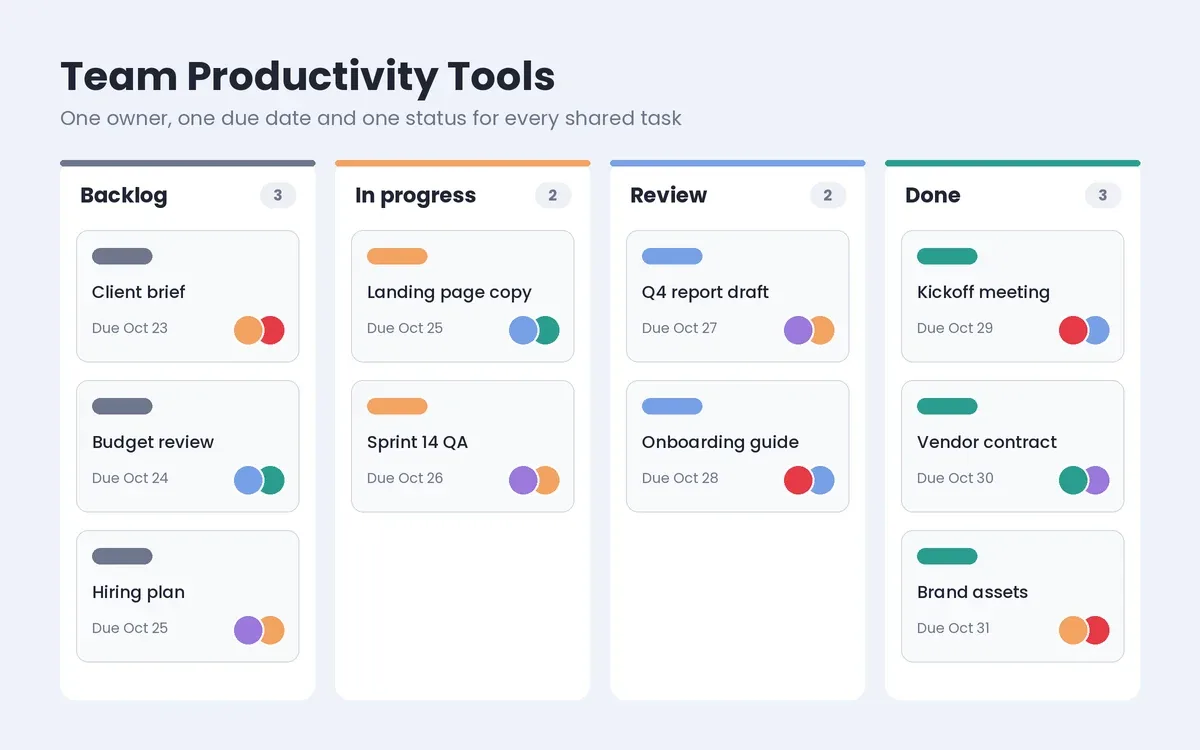
Team productivity tools such as Asana, Trello and ClickUp give every shared task an owner, a due date and a visible status, which removes the need for status-update meetings. They matter most once a team runs 3 or more projects at the same time.
Asana fits cross-team work with dependencies, timelines and workload views. Its free Personal plan now covers only 2 users, so a growing team usually moves to Starter at $10.99 per user per month.
Trello is the easiest way to start with kanban boards. Each project is a board, each task is a card, so moving a card from “Doing” to “Done” is the whole workflow. It suits freelancers or small teams that dislike complex setup.
ClickUp aims to replace several apps with one workspace that holds tasks, docs, whiteboards and goals, with more than 15 views ranging from lists to Gantt charts. The price of that breadth is a steeper learning curve during the first weeks.
Notion works as both a project tracker and a company wiki. Its databases switch between table, board, calendar and timeline views, which makes it a popular base for documentation. Setup takes time, so many people keep daily tasks in a separate, simpler app.
Note-Taking Apps: Notion, Obsidian and Evernote
The best note-taking app depends on where you want your notes to live: in a shared cloud workspace (Notion), in private files on your own device (Obsidian) or in a searchable archive of clips and scans (Evernote).
Obsidian stores notes as plain text files on your computer and links related ideas through a graph view. Researchers, writers and developers like that control. Evernote remains a solid option for clipping web pages, scanning paper receipts and searching text inside images.
Time Tracking and Productivity Tracker Apps: Toggl Track, Clockify and RescueTime
A productivity tracker records how long work takes, either through a timer you start or through automatic logging of the apps and websites you use. Freelancers rely on these apps for accurate invoices, while managers use them to see whether a project is eating more hours than planned.
• Toggl Track starts a timer with one click, and its browser extension adds a start button inside tools such as Google Docs, Todoist and Notion.
• Clockify offers unlimited users on its free plan, which makes it a strong first step for teams with no budget.
• RescueTime runs in the background, classifies time spent in each app or site, then sends a weekly report on focus time versus distraction.
Tracked hours become more useful once they feed a clear goal. Our guide to KPI examples shows how to turn logged time into measures such as utilization rate or time saved per user.
Focus Apps: brain.fm, Focus Traveller and Forest
Focus apps protect deep work by blocking distractions, timing work sprints or playing audio designed to hold attention. They pair well with the Pomodoro technique, which splits work into 25-minute sessions with 5-minute breaks.
• brain.fm plays music built for focus, relaxation or sleep, with filters for sounds such as rain, acoustic guitar or singing bowls.
• Focus Traveller turns each Pomodoro into a mountain climb, and the avatar stops moving if you leave the app during a session.
• Forest grows a virtual tree while the phone stays untouched. Leaving the app before the timer ends kills the tree, which is a small but effective nudge to stay off social media.
Communication Tools: Slack and Microsoft Teams
Slack and Microsoft Teams replace most internal email with channels organized by project, team or topic. Slack’s free plan keeps 90 days of message history, while Pro costs $7.25 per user per month on annual billing. Microsoft Teams is included with most Microsoft 365 business plans, which makes it the default for companies already paying for Outlook and Excel.
Neither app is a task manager. Decisions made in chat should move into a project management tool, or they get buried within days.
Office Productivity Tools: Google Workspace and Microsoft 365
Office suites handle documents, spreadsheets, slides, email and cloud storage, with Google Workspace and Microsoft 365 leading the US market. Both now bundle AI features into their base business plans.
Google Workspace Business Starter costs $7 per user per month with a 1-year commitment. It includes Gmail on your own domain, Docs, Sheets, Meet and 30 GB of storage per user. Microsoft 365 Business Basic rose from $6 to $7 per user per month on July 1, 2026. The plan covers web versions of Word, Excel and PowerPoint, with Teams plus 1 TB of OneDrive storage per user. Teams that live in spreadsheets often prefer Excel, while teams that co-edit documents all day usually lean toward Google Docs.
Automation and AI Assistants: Zapier and ChatGPT
Automation platforms and AI assistants cut the repetitive work between apps, such as copying form entries into a spreadsheet or drafting a first version of an email. Zapier connects thousands of apps through “Zaps” that run when a trigger fires. Its free plan includes 100 tasks per month, while multi-step Zaps need the Professional plan.
ChatGPT and similar AI writing tools draft emails, summarize long documents and turn rough notes into structured plans. They work best for first drafts, while a person still checks facts and tone. Readers who want the background on how these assistants produce text can start with our guides to generative AI and how AI works.
Best Free Productivity Apps
The best free productivity apps are Todoist, Microsoft To Do, Trello, Notion, Obsidian, Clockify, Toggl Track, Slack, Zapier and Calendly, each with a free plan good enough for daily personal use. A full free stack can cover tasks, notes, time tracking, chat and scheduling without spending a dollar.
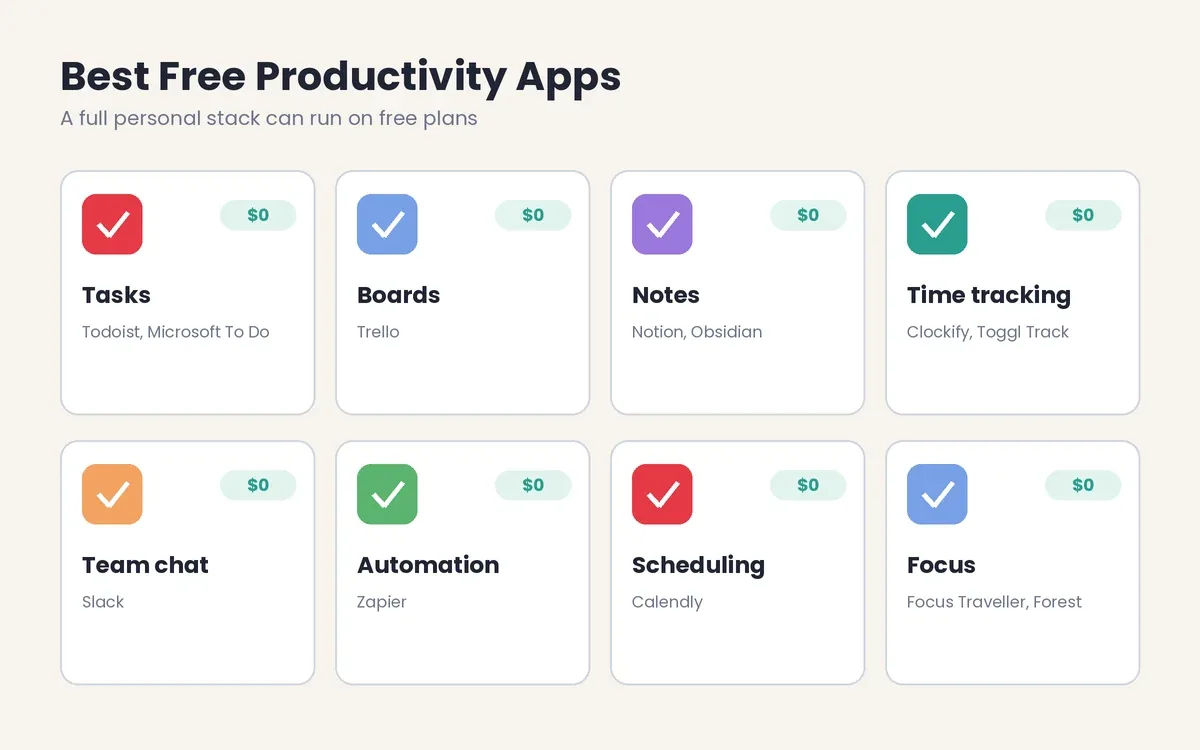
The best free apps for productivity each come with a clear limit worth knowing before you commit:
• Todoist Beginner allows 5 active personal projects.
• Microsoft To Do is fully free with a Microsoft account.
• Trello Free allows up to 10 boards per workspace.
• Notion Free suits individuals but keeps only a short page history.
• Obsidian is free for personal use, with paid sync as an option.
• Clockify Free supports unlimited users with no time limit on tracking.
• Toggl Track Free covers up to 5 users.
• Slack Free keeps 90 days of message history.
• Zapier Free runs 100 tasks per month on two-step Zaps.
• Calendly Free includes one event type.
Good productivity apps do not need to cost money. Start with the free version for 2 to 3 weeks, then upgrade only when you hit a limit that blocks real work.
Best Productivity Software for Small Business
The best productivity software for small business is a lean stack of 4 apps: an office suite, a chat tool, a project management tool and a time tracker, which costs roughly $20 to $35 per user per month. That budget covers almost every daily need for a team of 5 to 50 people.
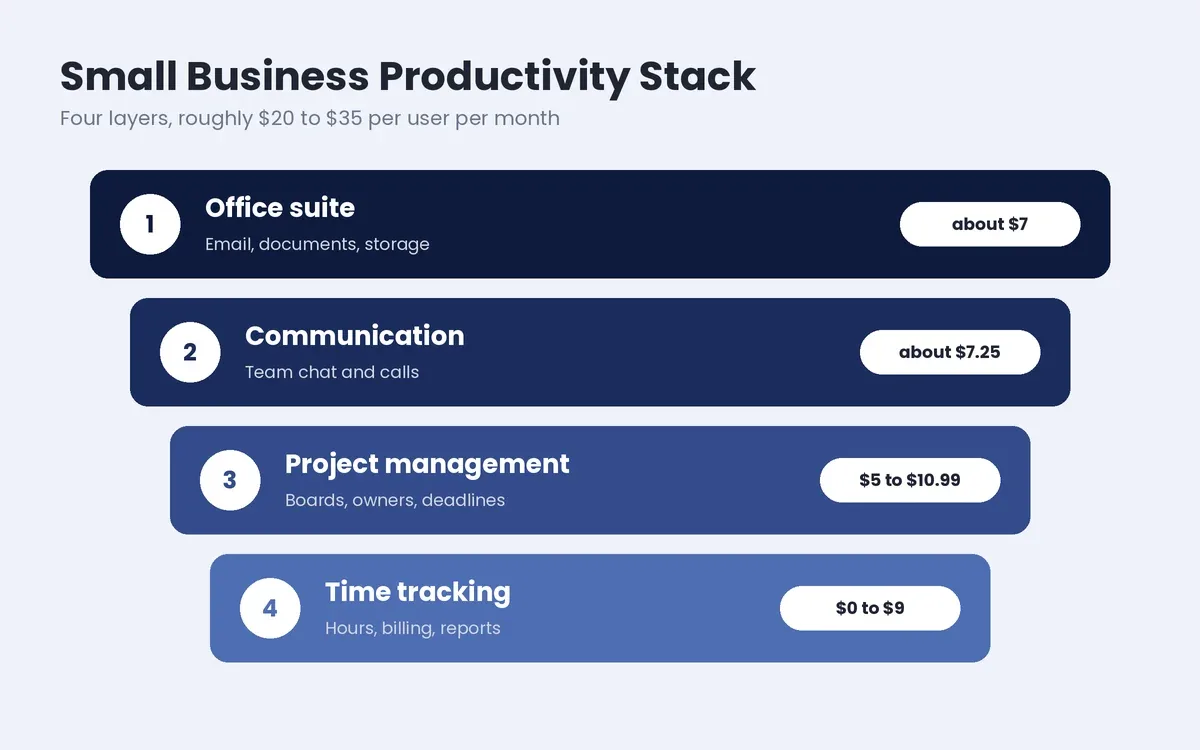
A practical stack of apps for business productivity looks like this:
• Office suite: Google Workspace or Microsoft 365 at about $7 per user per month for email, documents and storage.
• Communication: Slack at $7.25 per user per month, or Microsoft Teams if you already pay for Microsoft 365.
• Project management: Trello at $5 per user per month for simple boards, or Asana at $10.99 for cross-team planning.
• Time tracking: Clockify free, or Toggl Track when you need billable rates and client reports.
Business productivity tools pay off only when the whole team uses the same system. Pick one owner per app, write a short guide on how tasks move from chat into the project board, then review usage after 30 days.
A small business sometimes outgrows these subscriptions, for example when a field team needs offline forms or when shift schedules must sync with payroll. At that point, a custom software development company can build one internal app that replaces three or four paid tools.
Productivity Apps for Windows, Mac and the Web
The best Windows apps for productivity are Microsoft To Do, Microsoft 365, Microsoft Teams, Todoist and Toggl Track, all of which offer native Windows desktop apps. Windows users get the deepest Outlook and Excel integration from Microsoft’s own apps, while Todoist and Toggl Track add global keyboard shortcuts for quick entry.
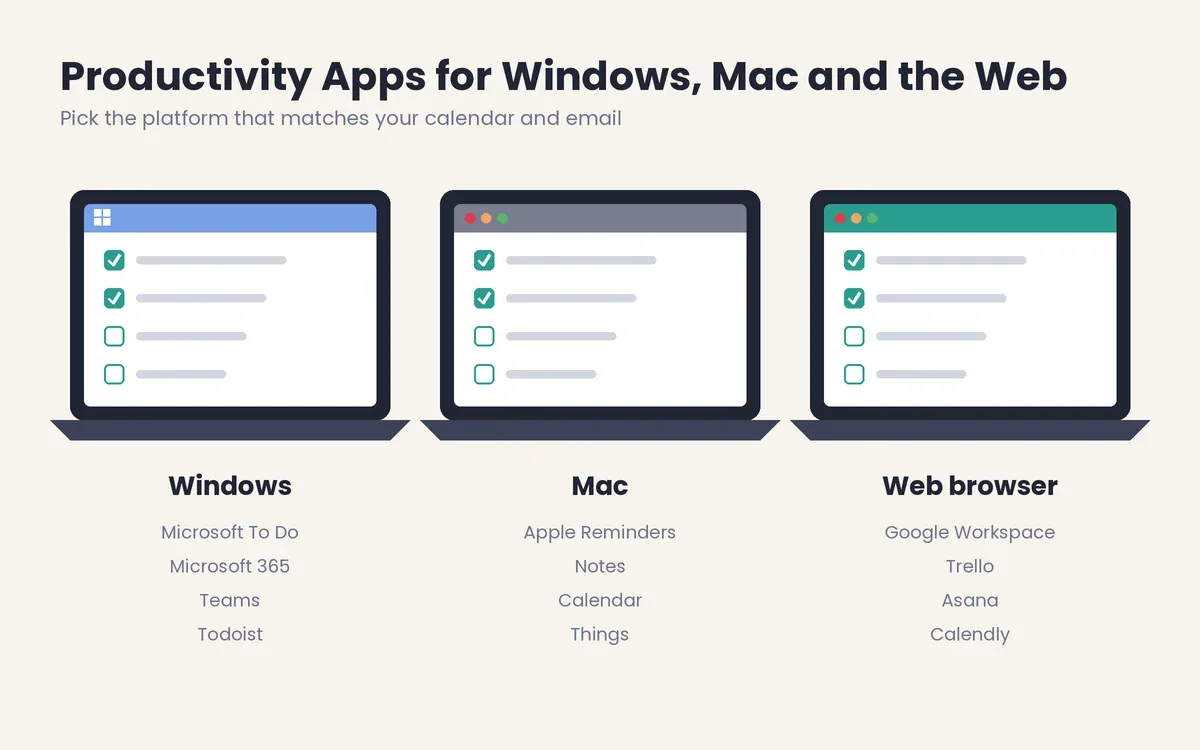
Mac users get the most from Things, Apple Reminders, Calendar and Notes, which sync through iCloud across iPhone, iPad and Mac. Cross-platform apps such as Notion, Obsidian, Slack and Sunsama run well on both systems.
Web productivity tools run inside a browser and need no installation, which suits shared or locked-down work computers. Google Workspace, Trello, Asana and Calendly work fully in a browser tab. Many of these web apps behave like installed software through progressive web apps, a technology that adds offline access and home-screen icons to a website.
Productivity apps for Windows and Mac differ mostly in integrations, not in features. Choose the app that connects to the calendar and email you already use, then check that it has a mobile app for capture on the go.
Productivity Apps for Different Roles
The right app stack changes with the job, so a remote worker, a developer, a teacher and an adult with ADHD each benefit from a different mix. The recommendations below match common roles with the categories that solve their biggest problem.
Remote Workers and Remote Teams
Remote workers need fast communication, shared documents and clear task ownership across time zones. A typical remote stack pairs Slack or Microsoft Teams with Asana or Trello, adds Google Workspace for shared files and uses Calendly to avoid scheduling emails between time zones. For work from home or a home office, a focus app such as Forest helps separate household interruptions from work blocks.
Developers
Developers lose the most time to context switching between code, tickets and chat. A good setup keeps tasks next to the code through issue trackers, uses Obsidian or Notion for technical notes, then protects deep work with focus audio such as brain.fm and silenced chat notifications during coding blocks.
Teachers and Students
Teachers benefit from Google Workspace for lesson plans and grading sheets, Trello boards for unit planning and Calendly for parent meetings. Students and kids do well with visual, low-friction apps such as Focus Traveller or Forest, which turn study sessions into a game.
Adults With ADHD
Adults with attention deficit hyperactivity disorder (ADHD) often struggle with organizing tasks, managing time and sustaining attention, according to the National Institute of Mental Health (NIMH). Apps that reduce visual clutter help most. Routine’s single “today” view, Sunsama’s realistic daily limits, Todoist’s natural language capture and gamified timers such as Focus Traveller remove friction at the moments when attention drops.
HR Teams and Virtual Assistants
HR teams use project boards for hiring pipelines, shared calendars for interviews and time trackers for timesheets. Virtual assistants who serve several clients rely on Akiflow to gather tasks from many inboxes, Toggl Track for billable hours and Zapier to automate repeat admin such as moving form leads into a spreadsheet.
Productivity Techniques That Make Any App Work Better
Apps support a method but do not replace one, so the 5 techniques below decide whether a new tool sticks: Getting Things Done, the Eisenhower Matrix, the Pomodoro technique, time blocking and deep work.
1. Getting Things Done (GTD), created by David Allen, moves every open loop out of your head into a trusted inbox, then sorts each item into next actions, projects or reference material.
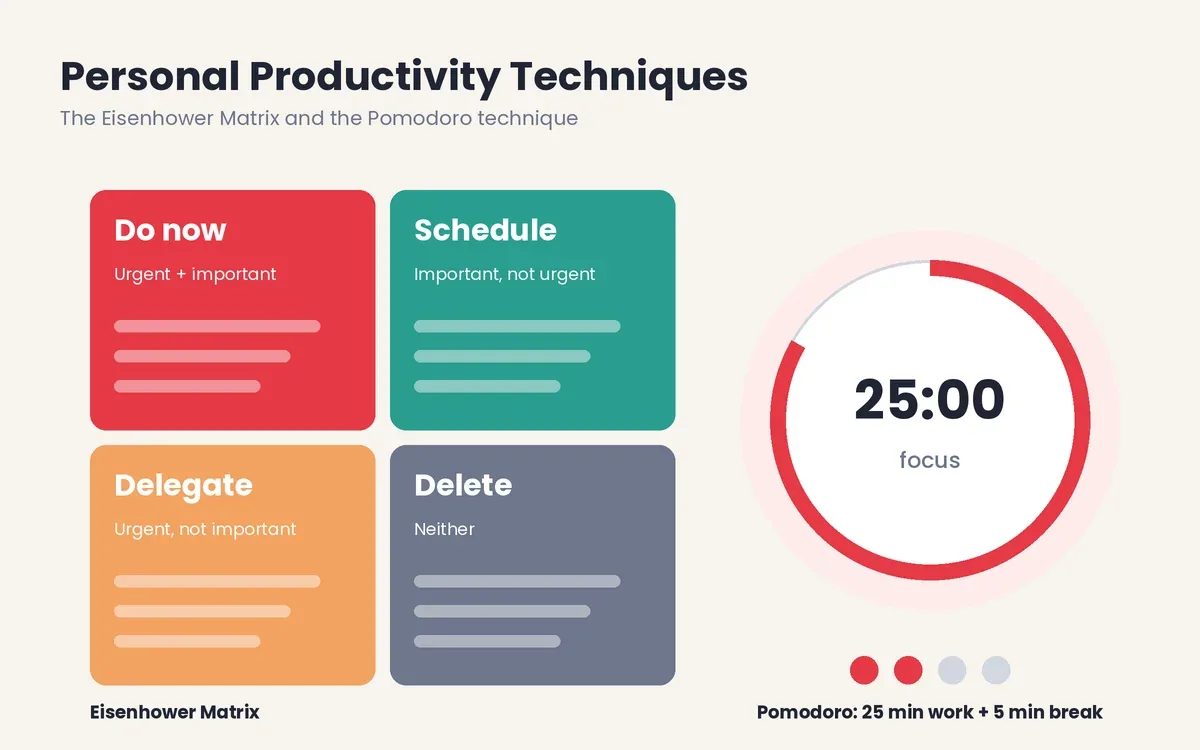
2. The Eisenhower Matrix sorts tasks into 4 boxes by urgency and importance: do now, schedule, delegate or delete. It takes its name from Dwight D. Eisenhower, who drew a line between urgent problems and important ones in a 1954 speech.
3. The Pomodoro technique, developed by Francesco Cirillo, alternates 25 minutes of focused work with a 5-minute break, plus a longer break after 4 rounds.
4. Time blocking assigns every task a fixed slot on the calendar, which turns a wish list into a realistic plan.
5. Deep work reserves long, uninterrupted blocks of 60 to 90 minutes for demanding tasks, with chat and email closed.
Personal productivity tools work best when they match one of these methods. Todoist offers GTD and Eisenhower templates, Focus Traveller runs Pomodoro sessions, while Sunsama and Akiflow are built around time blocking.
What Are the Benefits of Productivity Software?
There are 5 main benefits of productivity apps: less time lost to task switching, fewer missed deadlines, clearer team accountability, accurate time data and automated busywork. Each benefit links to a measurable result.
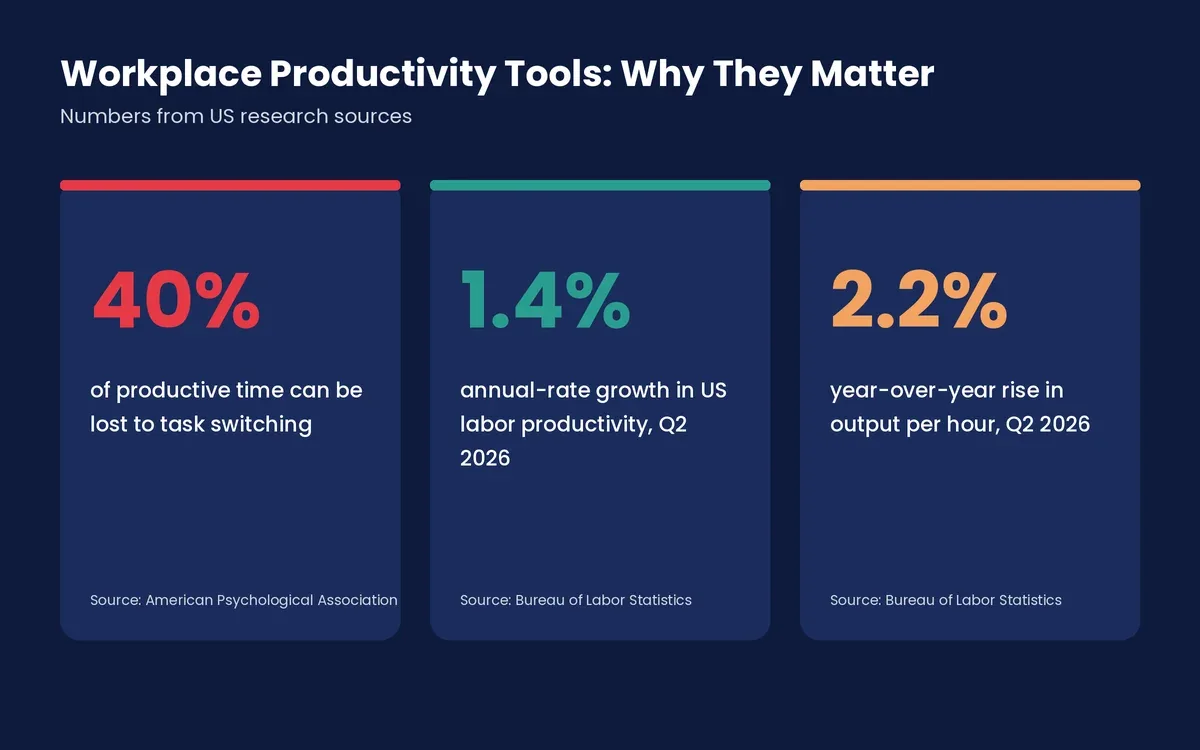
• Less task switching. David Meyer, a psychologist cited by the American Psychological Association (APA), has said that shifting between tasks can cost as much as 40 percent of someone’s productive time. Consolidating apps and batching messages cuts that loss.
• Lower stress from interruptions. A study by Gloria Mark at the University of California, Irvine found that people who were interrupted finished tasks faster, but they reported more stress, frustration and time pressure. Focus modes and scheduled notification windows reduce that pressure.
• Fewer missed deadlines. Reminders, due dates and recurring tasks keep commitments visible, so nothing depends on memory alone.
• Clear accountability. Workplace productivity tools give every task one owner and a status, which removes “who was doing this?” questions in meetings.
• Accurate time data. Time trackers show which clients, projects or meetings consume the most hours, which supports better pricing and planning.
The gains add up at the national level, too. The Bureau of Labor Statistics (BLS) reported that US nonfarm business labor productivity grew at a 1.4 percent annual rate in the second quarter of 2026. Compared with the same quarter a year earlier, output per hour rose 2.2 percent. Software is one of many inputs behind that figure, yet workplace efficiency tools are among the few levers a single team controls directly.
How to Choose the Right Productivity Apps in 7 Steps
To choose the right productivity apps, start from your biggest bottleneck, test one tool at a time and keep only the apps you still open after 30 days. The 7 steps below work for a solo freelancer or a 50-person company.
1. Name the bottleneck. Write down the one problem that costs the most time, such as missed deadlines, scattered files or constant interruptions.
2. Pick the category that solves it. Missed deadlines point to a task manager, scattered files point to an office suite, while interruptions point to a focus app.
3. Check your current apps first. Google Workspace or Microsoft 365 often already include a task list, calendar and chat that solve the problem at no extra cost.
4. Shortlist 2 or 3 options. Compare integrations with the email, calendar and chat you already use, plus mobile apps and export options.
5. Test on the free plan for 2 to 3 weeks. Use the app for real work, not a demo project, so first impressions do not mislead you.
6. Remove overlap. Two apps that do the same job split your attention, so keep one and cancel the other.
7. Review every quarter. Delete any app you have not opened in 30 days, then confirm that each paid plan still matches your needs.
Work productivity tools fail most often when a team adds them on top of old habits. Agree on one rule for where tasks live, where files live and where decisions get recorded, then apply it to every new app.
Productivity App Updates and Pricing Changes in 2026
Productivity app updates in 2026 follow two clear trends: AI assistants moving into the core of every app, and price increases tied to those AI features. Buyers who last compared plans in 2024 will find several changes.
• Todoist raised Pro from $4 to $5 per month on annual billing in December 2025, with Business moving from $6 to $8 per user.
• Notion now bundles full Notion AI, including Agents and AI Meeting Notes, into the Business plan at $20 per member per month, while Free and Plus get only a limited trial.
• Slack retired its separate AI add-on and moved AI features into Business+, priced at $15 per user per month on annual billing.
• Microsoft 365 raised Business Basic from $6 to $7 and Business Standard from $12.50 to $14 per user per month on July 1, 2026.
• Google Workspace now includes Gemini AI in its base business plans, starting at $7 per user per month.
The shift from tools you operate to assistants that act on your behalf will continue. Top productivity apps now ship features that plan a day, summarize a meeting or file a task without a click, built on the same machine learning methods behind modern chatbots. Teams that want those agents to work across their own internal systems, not only inside one vendor’s app, often turn to AI agent development for workflow automation.
When Off-the-Shelf Apps Stop Fitting: Custom Productivity Software
Custom productivity software makes sense when a team pays for 4 or more overlapping subscriptions, copies data between them by hand or needs a workflow that no public app supports. Shift scheduling for hourly staff, field data collection and industry-specific approvals are common examples.
O2SOFT has built this kind of software for more than a decade. The WorkTime shift scheduling app lets hourly workers set up a shift schedule in two taps, add notes and reminders, then share schedules with family or employers. Persistent reminders help users stick to their schedules, while one dashboard shows several schedules at once.
A custom build usually combines a mobile app development company for field staff, a web development company for the admin portal and UI/UX design that keeps the interface simple enough for non-technical users. Companies that want AI features such as automatic task triage or document summaries can add them through AI development services. You can see how projects move from discovery to launch in our delivery process, browse more case studies, or read our guide to choosing a technical partner before you start.
Conclusion
Productivity tools work best as a small, connected system rather than a pile of subscriptions. Start with the 9 categories of productivity software, choose one app for the category that matches your biggest bottleneck, then add a second only when the first is part of your routine.
For most people, a free task manager, a calendar, a note-taking app and a focus app cover daily needs. Teams add a communication tool, a project management board, an office suite and a time tracker. Pair any stack with a proven method such as time blocking or the Pomodoro technique, review your apps every quarter and remove anything you no longer open.
Frequently Asked Questions
Are productivity tools worth paying for?
Yes, paid plans are worth it when a free plan’s limit blocks real work, such as a cap on projects, users or message history. For most individuals, free plans cover daily needs, while teams usually gain enough saved time from shared project boards and time tracking to justify $5 to $15 per user per month.
What are the 4 basic types of productivity software?
The 4 basic types of productivity software are word processors, spreadsheets, presentation software and database programs. Modern lists add task managers, project management tools, communication apps, time trackers and AI assistants to those classic office categories.
What is the best free productivity app?
Todoist is the best free productivity app for most people, followed by Microsoft To Do for Windows users and Notion for notes. Each offers a free plan with no time limit, apps for desktop and mobile, plus enough features for personal task management.
What is a productivity tracker?
A productivity tracker is an app that records how time is spent, through a manual timer or automatic logging of apps and websites. Toggl Track, Clockify and RescueTime are common examples, used for client billing, payroll or personal self-review.
How many productivity apps should one person use?
One person should use 3 to 5 productivity apps at most: a task manager, a calendar, a note-taking app and one focus or time-tracking app. More apps than that usually add switching time instead of saving it.
Can AI assistants replace traditional productivity apps?
No, AI assistants do not replace traditional productivity apps yet, but they now sit inside most of them. An AI assistant can draft a plan, summarize a meeting or suggest a schedule, while the task manager, calendar and project board still hold the commitments and deadlines.
Are productivity apps safe for company data?
Yes, most established business productivity apps are safe for company data when you use business plans with single sign-on (SSO), two-factor authentication and admin controls. Check where data is stored, who can export it and whether the vendor offers a data processing agreement before moving client information into any new app.