


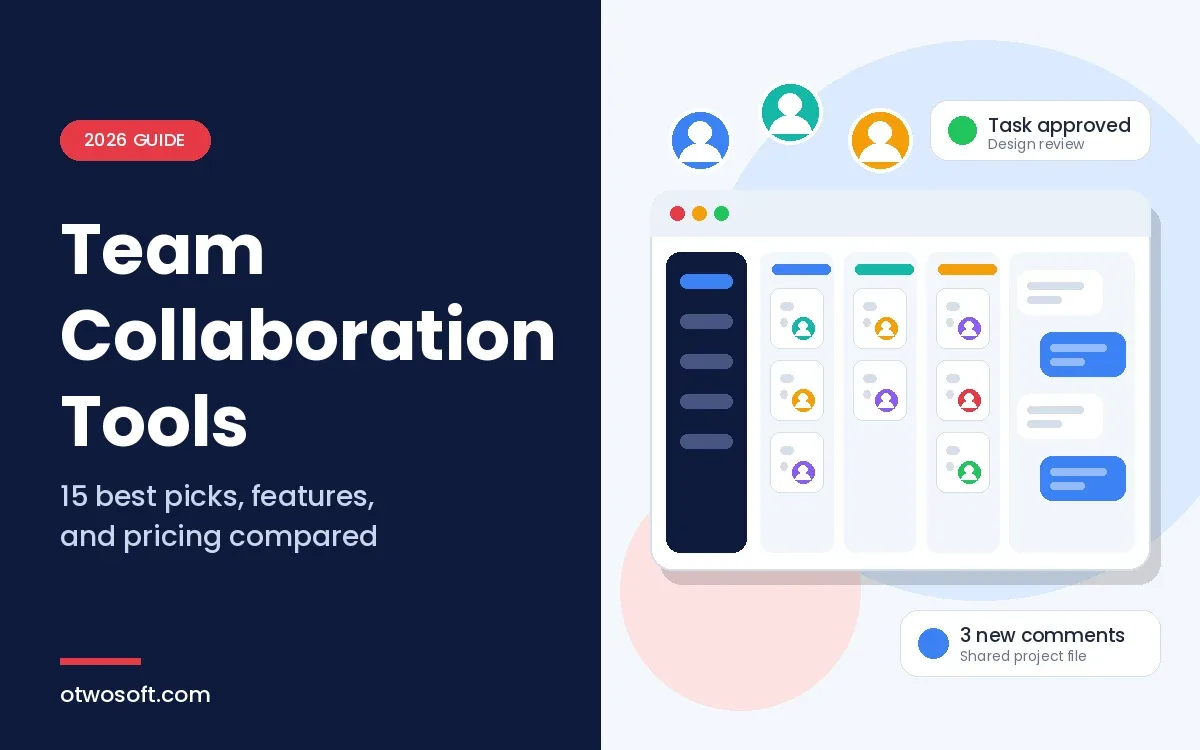
Team collaboration tools are cloud applications that give a group one shared place to talk, assign work, edit files, and track progress from any location. People can sit in one office or across five time zones and still work from the same record. Broad collaboration platforms bundle chat, video calls, task boards, documents, storage, and integrations into one subscription. Specialized tools focus on a single job, such as messaging or project tracking. The main benefits are faster decisions, fewer status meetings, clearer ownership of work, and a record that survives staff changes. Teams use these products for daily messaging, project tracking, client collaboration, document review, brainstorming, and onboarding new hires.
This guide explains how collaboration software works, which types exist, and which collaboration platform features matter most. It compares 15 widely used collaboration tools with verified pricing, matches them to common team types, and covers open-source options for teams that want to self-host. The final sections deal with security, measurement, artificial intelligence (AI), and a seven-step selection process.
What Are Collaboration Tools for Teams?
Collaboration tools for teams are software products that let several people communicate, coordinate tasks, and produce shared work inside a digital workspace. Older terms such as groupware and collaborative software overlap with this category, but they are not exact synonyms. Groupware traditionally meant shared email, calendars, and contacts, whereas work management software focuses on tasks, timelines, and workloads. Analysts often group the whole category as cloud based productivity and collaboration tools, since most products now run in a browser and store data with the vendor.
The need for shared digital workspaces has not faded as offices reopened. The U.S. Bureau of Labor Statistics reported that 35% of employed people did some or all of their work at home on days they worked in 2025. The figure describes work location on a given day rather than fully remote employment. Researchers at WFH Research estimate that about 26% of full paid workdays in the United States were worked from home in June 2026. Hybrid schedules mean a project team rarely shares a room for an entire week, so online collaboration tools have become the default meeting place rather than a backup.
Good team collaboration software answers four questions without a meeting:
- Who owns each task, and when is it due?
- Where do the latest file and the final decision live?
- How much capacity does each person have this week?
- What changed since yesterday, and who needs to act on it?
How Does Team Collaboration Software Work?
Team collaboration software works by keeping conversations, tasks, and files in a shared workspace that every member reaches through a browser, desktop app, or mobile app. Each product uses its own architecture and sync method, but most cloud collaboration tools show one person's edits to the team in near real time. That is how two editors can type in the same document without overwriting each other.
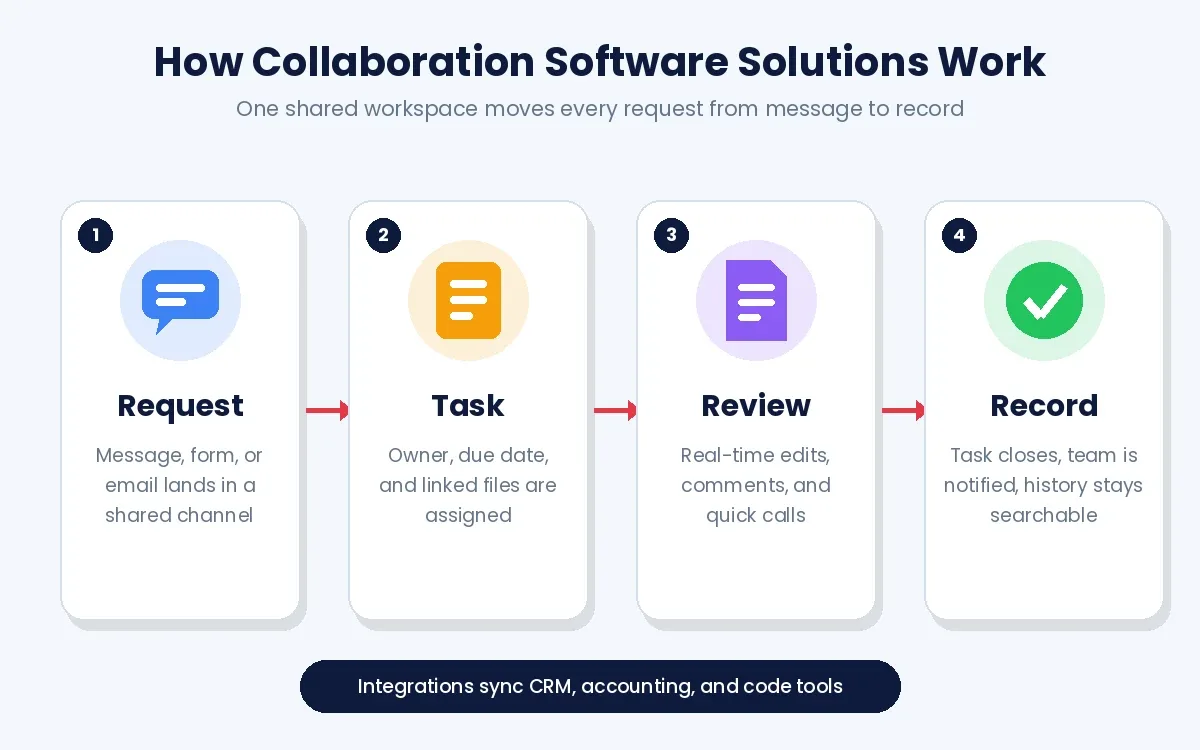
Most collaboration software solutions follow the same four-stage loop from request to record:
- A request arrives as a chat message, form submission, or email that lands in a shared channel.
- Someone converts the request into a task with an owner, due date, and linked files.
- The team edits documents, leaves comments, and holds short calls until the work is approved.
- The finished task closes, notifications go out, and the record stays searchable for later audits.
Integrations connect this loop to the rest of a company stack. An application programming interface (API) lets a project tool push updates into team chat, send billable hours to QuickBooks, or pull deal data from HubSpot. When off-the-shelf connectors fall short, companies often commission web development for a client portal that sits on top of their existing tools.
What Are the Main Types of Collaboration Software?
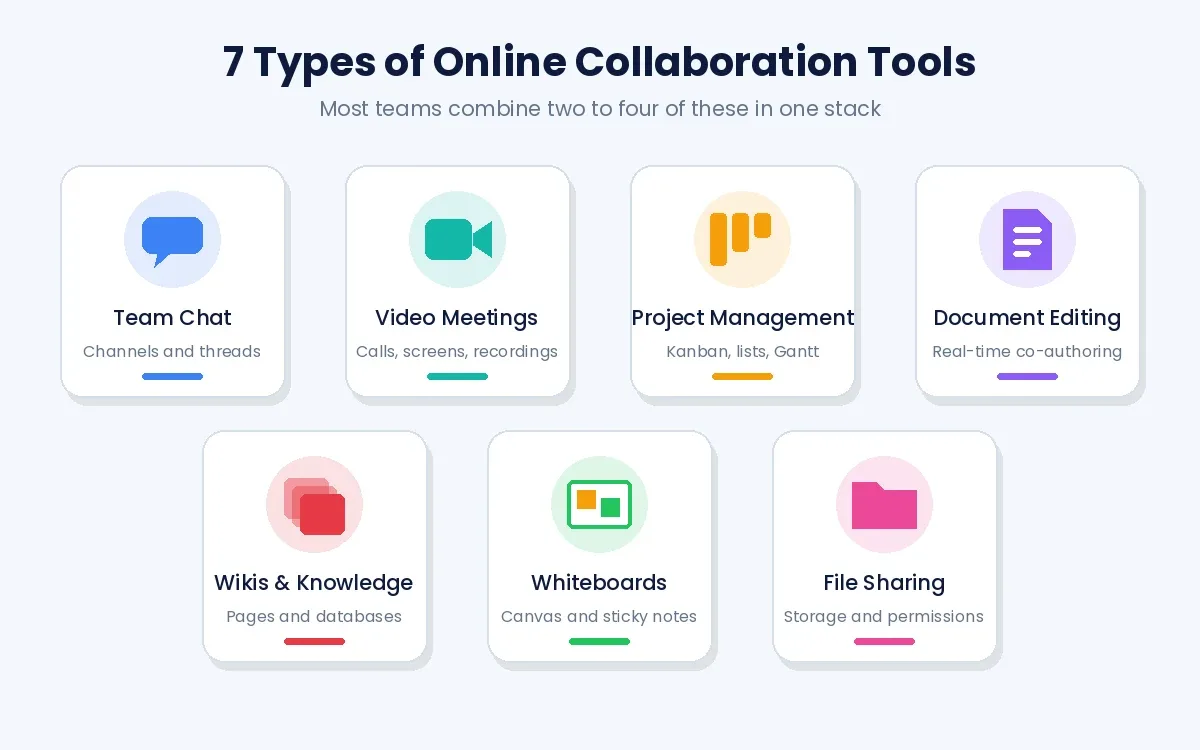
Collaboration software falls into 7 main types: team chat, video conferencing, project management, document collaboration, knowledge bases, visual whiteboards, and file sharing. Many products cover two or three types, while all-in-one suites try to cover nearly every type in one subscription.
- Team chat software keeps real-time and threaded conversations in channels, with Slack, Microsoft Teams, or Google Chat serving as the most common team communication tools.
- Video conferencing tools handle meetings, screen sharing, recordings, and transcripts, with Zoom, Microsoft Teams, and Google Meet as common choices.
- Project collaboration tools organize tasks on Kanban boards, lists, and Gantt timelines, with Asana, Monday.com, Wrike, and Jira leading this group.
- Document collaboration platforms support real-time editing, comments, and version history, which is the core job of Google Workspace and Microsoft 365.
- Knowledge bases and wikis store policies, specs, and meeting notes in linked pages or databases, with Notion or Confluence as the best-known names.
- Visual whiteboards offer an infinite canvas with sticky notes, voting, and diagrams for workshops, which is where Miro sits.
- File sharing services hold large files, control access, and sync folders across devices, with Google Drive, OneDrive, and Dropbox covering most teams.
Some industries combine several of these types inside one product. Learning platforms such as KIPS LMS pair live video classes with assessments and progress tracking, so students and teachers never switch between separate apps.
What Are the Benefits of Collaboration Tools for Business?
The main benefits of collaboration tools for business are faster decisions, fewer meetings, clear accountability, searchable knowledge, easier remote team collaboration, and less software sprawl. How much of each benefit a company sees depends on adoption, since a tool that only part of the team uses leaves gaps in the shared record.
- Faster decisions come from keeping the question, the context, and the decision maker in one thread instead of an email chain with seven replies.
- Fewer meetings follow when status lives on a shared board, which frees standups for blockers rather than progress reports.
- Clear accountability results from assigning every task one owner and one due date that everyone can see.
- Searchable knowledge protects a team when people leave, since decisions and files stay attached to the projects they shaped.
- Easier remote work happens when time zones stop mattering for routine updates, comments, and approvals.
- Less sprawl follows when one platform replaces three or four single-purpose apps with separate logins and invoices.
These gains show up most clearly in team productivity software that pairs task tracking with communication, removing the copy-and-paste work between chat and a project board.
Which Collaboration Platform Features Matter Most?
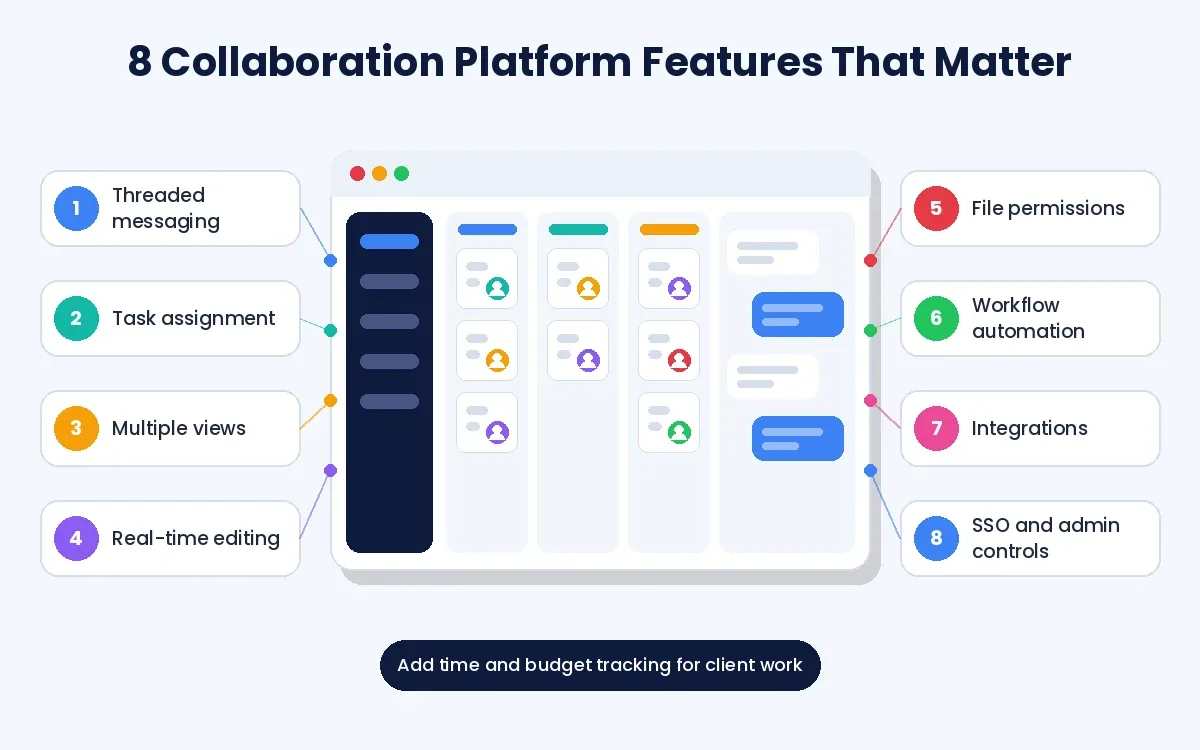
The collaboration platform features that matter most are threaded messaging, task assignment, multiple views, real-time editing, file permissions, workflow automation, integrations, and admin controls. Teams that bill clients add time tracking, resource scheduling, and reporting on top of that base.
- Threaded messaging keeps side discussions out of the main channel and makes old decisions easy to find.
- Task assignment gives every piece of work an owner, a due date, a priority, and a status.
- Multiple views let one project appear as a Kanban board, a list, a calendar, or a Gantt chart, depending on who is looking.
- Real-time editing allows several people to write in one document with comments and version history.
- File permissions control who can view, comment on, or edit each file, including external guests.
- Workflow automation runs repeat steps through a rules engine, such as assigning a reviewer when a task reaches "Ready."
- Integrations connect the platform to email, calendars, CRM software, accounting apps, and code repositories.
- Admin controls include single sign-on (SSO), multi-factor authentication (MFA), audit logs, and data retention settings. Availability varies by product, and many vendors reserve these controls for business or enterprise tiers.
Built-in automation handles single-app rules well, but multi-step flows that cross several systems often need more. AI agent development covers that gap by automating work that moves between a CRM, a project tool, and email without manual copying. Agencies and consultancies should check time tracking, budget tracking, and workload visibility as well, since these features reveal profitability per project before a deadline slips.
How We Selected These Tools
The 15 tools in this guide were selected through desk research of vendor documentation, public pricing pages, and product changelogs, not through lab testing. The goal was to cover every major category of collaboration software with a widely adopted option, so the list reflects coverage rather than a ranked score.
Each tool was reviewed against six criteria: category fit, free plan or trial, integration depth, security controls, pricing transparency, and ease of adoption. Prices were checked in October 2026 and show the lowest paid tier on annual billing in U.S. dollars, per user unless marked flat-rate. Vendors change plans often, so confirm the current terms on each pricing page before you buy. O2SOFT has no commercial relationship with any vendor listed here.
15 Team Collaboration Tools Compared
The 15 tools compared here are Slack, Microsoft Teams, Zoom, Google Workspace, Asana, Monday.com, ClickUp, Trello, Jira, Wrike, Smartsheet, Notion, Confluence, Miro, and Basecamp. Each one leads a different category, so the right choice depends on whether a team needs communication, project tracking, documentation, or visual planning first.
| Tool | Best for | Standout features | Free plan | Paid plans from (annual) |
|---|---|---|---|---|
| Slack | Team chat | Channels, huddles, Workflow Builder | Yes (90-day history) | $7.25/user/month |
| Microsoft Teams | Microsoft 365 users | Chat, meetings, Planner tabs | Limited free tier | $4/user/month (Teams Essentials) |
| Zoom | Video meetings | Meetings, whiteboard, AI notes | Yes (40-minute group limit) | $14.16/user/month |
| Google Workspace | Document editing | Docs, Sheets, Drive, Meet | Personal accounts only | $7/user/month |
| Asana | Workflow automation | Rules engine, timeline view, goals tracking | Yes | $10.99/user/month |
| Monday.com | Visual boards | Color-coded boards, 200+ templates | Yes (2 seats) | $9/seat/month (3-seat minimum) |
| ClickUp | All-in-one workspace | Docs, whiteboards, time tracking | Yes | $7/user/month |
| Trello | Simple Kanban | Butler automation, Power-Ups | Yes (10 boards) | $5/user/month |
| Jira | Software teams | Sprints, backlogs, issue tracking | Yes (10 users) | About $7.91/user/month |
| Wrike | Enterprise projects | Cross-tagging, proofing, resource views | Yes | $10/user/month |
| Smartsheet | Spreadsheet users | Grid view, Gantt, dashboards | No (30-day trial) | $9/member/month |
| Notion | Docs and wikis | Wikis, databases, AI writing | Yes | $10/member/month |
| Confluence | Knowledge bases | Spaces, page trees, Jira links | Yes (10 users) | $5.42/user/month |
| Miro | Visual workshops | Infinite canvas, sticky notes, voting | Yes (3 boards) | $8/member/month |
| Basecamp | Simple projects | Message boards, to-dos, Hill Charts | Yes (1 project) | Flat plans from $29/month |
1. Slack
Slack fits companies that want fast, organized conversation across many projects. Channels separate work by client, team, or topic, while huddles start a quick audio or video call without a calendar invite. Workflow Builder automates routine requests such as standup prompts, time-off approvals, and intake forms. The free plan keeps 90 days of message history, so growing teams usually move to Pro at $7.25 per user per month. Slack is a communication layer, which means most teams pair it with a separate project tool.
2. Microsoft Teams
Microsoft Teams is the natural choice for organizations already paying for Microsoft 365. Microsoft Teams, often searched as Teams MSFT, connects persistent chat, video meetings, and file sharing directly to Outlook, SharePoint, and OneDrive. Teams online runs in a modern browser, so outside guests can join a meeting without installing the desktop app. Planner adds basic Kanban boards inside a Teams channel, which covers simple task tracking without another login. Teams Essentials costs $4 per user per month as a standalone product. Microsoft 365 business plans bundle Teams with Word, Excel, and other Office apps at higher prices. Planner lacks dependencies and resource scheduling, so complex projects still need a dedicated tool.
3. Zoom
Zoom suits teams that run frequent video meetings with people inside and outside the company. Guests join from a link without an account, which makes client calls simple. Zoom Workplace adds chat, a whiteboard, scheduling, and AI meeting notes around the core video product. The free plan caps group meetings at 40 minutes with up to 100 participants. Paid Pro plans start at $14.16 per user per month on annual billing.
4. Google Workspace
Google Workspace is a cloud-based productivity and collaboration tool built around real-time editing in Docs, Sheets, and Slides, backed by shared drives in Google Drive. Many people search for "Google Teams" when they want a Microsoft Teams equivalent, yet Google has no product by that name. Google Chat with Meet fills that role inside Workspace. Comments, suggestions, and version history make reviews visible from any file. Shared drives keep files owned by the team rather than by an individual account, which protects work when someone leaves. Business Starter costs $7 per user per month with a one-year commitment, or $8.40 on the flexible monthly plan.
5. Asana
Asana is a strong pick for workflow automation among project collaboration tools. Its rules engine triggers multi-step actions on status changes, due dates, or form submissions. Timeline view shows task dependencies in a Gantt-style layout, while goals tracking connects daily tasks to quarterly objectives. Asana has no native time tracking on its core plans, so billable teams connect Harvest instead. The Starter plan costs $10.99 per user per month on annual billing.
6. Monday.com
Monday.com suits non-technical teams that want visual, color-coded boards they can learn in an afternoon. More than 200 templates cover marketing, client onboarding, and software releases. Automation recipes follow a plain "when this happens, do that" format, and dashboards roll up status across boards. The free plan covers 2 seats without automations, while paid plans start at $9 per seat per month with a 3-seat minimum.
7. ClickUp
ClickUp is an all-in-one option for teams that want tasks, docs, whiteboards, chat, and time tracking under one subscription. Custom fields and more than 10 types of view let a team shape the workspace around its own process. Native time tracking supports billable and non-billable entries without an add-on. The depth comes with a learning curve, so a rollout needs templates and training. The Unlimited plan starts at $7 per user per month on annual billing.
8. Trello
Trello offers the simplest Kanban boards in this list, which makes it a good fit for small teams and short projects. Cards move across columns such as To Do, Doing, and Done with a drag of the mouse. Butler automation moves cards, assigns members, and sets due dates by rule, while Power-Ups add calendars, voting, and integrations. Reporting is limited for multi-phase work with dependencies, and the free plan allows up to 10 boards per workspace. The Standard plan starts at $5 per user per month.
9. Jira
Jira is built for software development teams that plan in sprints and track issues from backlog to release. Scrum and Kanban boards, burndown charts, and custom workflows map closely to engineering practice. Jira links to Confluence for specs and to code repositories for commit history. Non-technical departments often find the setup heavy, so Jira tends to stay inside engineering. The free plan covers up to 10 users, and the Standard plan averages about $7.91 per user per month, with the rate falling as seat counts grow.
10. Wrike
Wrike serves enterprise teams that manage many projects with shared resources. Cross-tagging places one task in several project folders without duplicating it. Proofing lets reviewers mark up images, PDFs, and videos inside the task, while the workload view shows effort per person. Small teams often find the interface dense for their needs. The Team plan costs $10 per user per month for groups of 2 to 15 users.
11. Smartsheet
Smartsheet fits teams that think in spreadsheets but need project features such as dependencies, Gantt charts, and dashboards. The grid view feels familiar to anyone moving off Excel trackers, and forms feed requests straight into a sheet. Smartsheet has no free plan, so evaluation runs through a 30-day trial. Pro costs $9 per member per month on annual billing for teams of up to 10 members.
12. Notion
Notion suits documentation-heavy teams that want wikis, databases, and light project tracking in one workspace. Linked databases can show the same records as a table, board, calendar, or gallery. Notion AI drafts and summarizes pages inside the editor. Notion lacks native time tracking or resource scheduling, which limits it for billable work. The Plus plan costs $10 per member per month on annual billing.
13. Confluence
Confluence works best as the documentation layer for teams that already run Jira. Spaces and page trees organize specs, runbooks, and meeting notes, with strong search across them. Jira issues appear inline inside pages, which keeps requirements and work items connected. The free plan covers up to 10 users, while Standard costs $5.42 per user per month.
14. Miro
Miro is a visual collaboration tool built for workshops, retrospectives, and design sprints. Its infinite canvas holds sticky notes, mind maps, flowcharts, and wireframes that many people edit at once. Voting and timers help a facilitator run silent brainstorm windows with remote participants. The free plan allows 3 editable boards, and Starter costs $8 per member per month on annual billing.
15. Basecamp
Basecamp fits teams that want a calm, simple project space instead of endless configuration. Message boards replace long email threads, while to-dos, schedules, and file storage cover the basics. Hill Charts show whether work is still being figured out or is already being executed, which helps with async status updates. Basecamp skips Gantt charts and time tracking on purpose to keep the product simple. Basecamp now uses flat pricing with no per-user fees, starting at $29 per month for the Freelancer plan, while Pro Unlimited costs $199 per month billed annually.
Two more tools deserve a look before you settle on a shortlist. Hive combines Gantt, Kanban, calendar views, and native time tracking from $5 per user per month. ProofHub charges a flat $45 per month for unlimited users, which suits growing teams that dislike per-seat pricing.
Which Collaboration Tool Fits Which Team?
The right collaboration stack depends on team type, existing software, and data rules, so the same tool rarely suits every company. These pairings give a starting shortlist for six common situations.
- Small agencies usually pair Slack with ClickUp or Asana, since both project tools handle client work, while Basecamp suits agencies that value simplicity over configuration.
- Software development teams tend to run Jira for sprints, Confluence for specs, and Slack or Microsoft Teams for daily conversation.
- Microsoft 365 organizations get the most value from Microsoft Teams with Planner and SharePoint, adding Wrike or Smartsheet only when projects need dependencies.
- Google Workspace companies often add Trello or Asana for tasks, keeping documents in Drive and calls in Meet.
- Teams with strict data-residency rules should look at self-hosted open-source stacks or enterprise tiers that let them choose where data is stored.
- Field and frontline teams need offline-friendly mobile apps, and companies whose workflows outgrow vendor apps often turn to mobile app development for a purpose-built app. A progressive web app (PWA) is a lighter route that gives mobile access without two native builds.
How Much Do Collaboration Tools Cost?
Collaboration tools pricing follows 3 models: capped free tiers, per-user subscriptions of roughly $4 to $25 a month, and flat-rate plans that do not charge per seat. Enterprise tiers add SSO, audit logs, and data residency at custom prices.
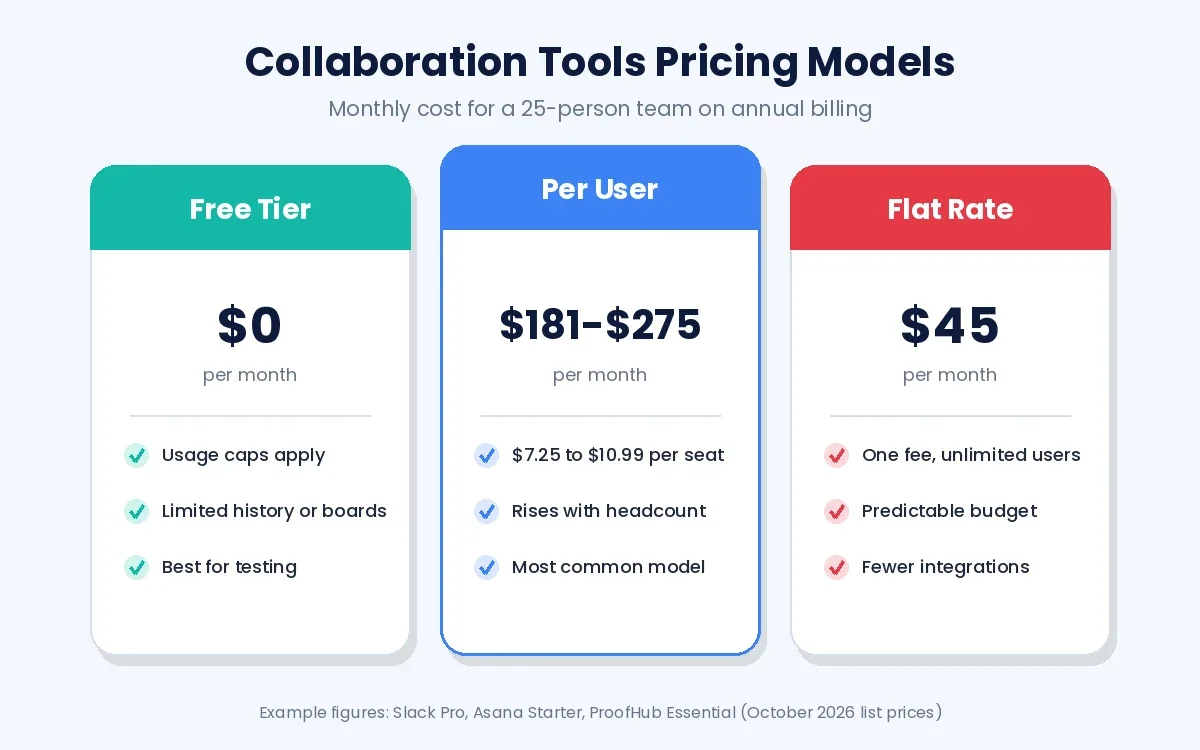
The model matters more than the sticker price as a team grows. A 25-person team on Asana Starter pays about $275 per month at $10.99 per seat. The same team on Slack Pro pays about $181 per month, and on ProofHub Essential it pays $45 per month regardless of headcount. Seat minimums change the math as well, since Monday.com bills at least 3 seats on every paid plan.
Free plans work well for testing, but each has a catch that appears with real use. Anyone looking for a free team collaboration platform should expect limits. Slack hides messages older than 90 days, Zoom ends group calls at 40 minutes, and Miro caps a free workspace at 3 editable boards. Budget for the plan your team will need six months from now rather than the plan it needs during a trial.
Are There Open-Source Collaboration Tools?
Yes, open-source collaboration tools exist for chat, video, files, documents, and project management, and most of them can be self-hosted on a company server. Self-hosting keeps data inside your own infrastructure, which matters for regulated industries, government contractors, and companies with strict data residency rules.
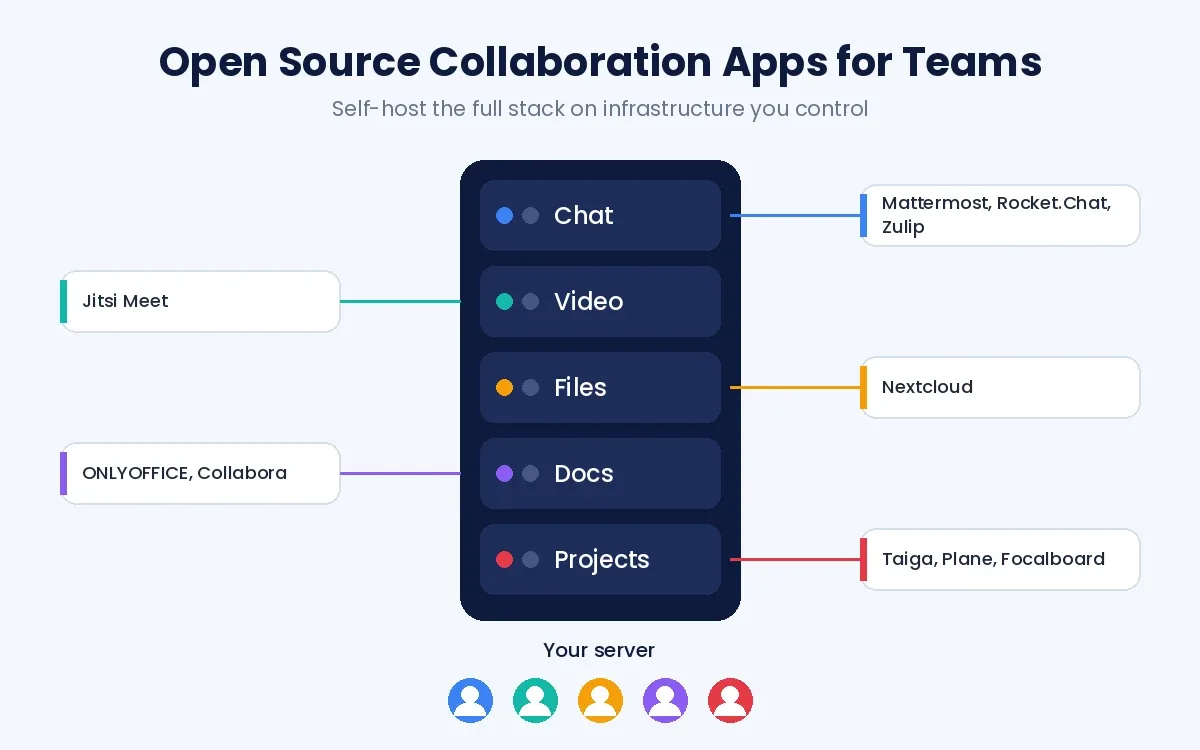
A product counts as open source when its license meets the Open Source Initiative definition, which allows anyone to inspect, modify, and redistribute the code. Ten widely used projects cover the full collaboration stack between them:
- Mattermost and Rocket.Chat provide team chat with channels, threads, and integrations.
- Zulip organizes chat by topic threads, which keeps fast-moving conversations readable.
- Jitsi Meet runs browser-based video meetings that guests can join without creating an account.
- Nextcloud combines file sync, calendars, contacts, and Nextcloud Talk for calls.
- ONLYOFFICE and Collabora Online add real-time editing of Word, Excel, and PowerPoint files.
- Taiga and Plane manage agile projects with backlogs, sprints, and Kanban boards.
- Focalboard offers Trello-style Kanban boards for small teams that want a self-hosted option.
- Excalidraw provides a lightweight shared whiteboard for sketching diagrams with remote colleagues.
Open source removes license fees but moves the cost to hosting, updates, backups, and security patches. As a rough planning assumption rather than a benchmark, budget some engineering time each month. The real effort depends on how many services you run, how often they update, and how strict your security rules are.
How Do You Choose the Best Collaboration Tools for Your Team?
To choose the best collaboration tools for your team, map the bottleneck, list needs, check integrations, run a pilot, review security, compare cost, then roll out. The process takes two to four weeks for most teams under 100 people.
- Map the bottleneck. Write down where work stalls today, such as lost files, unclear owners, or slow client approvals.
- List must-have features. Separate needs from wants, then rank the five features that solve the bottleneck you found.
- Check integrations. Confirm the tool connects to your email, calendar, CRM, accounting app, and code repository.
- Run a pilot. Give 5 to 10 people a real project for two weeks and collect their feedback in writing.
- Review security. Ask for SSO, MFA, audit logs, encryption details, and the vendor's compliance reports, then confirm which of these your chosen plan includes.
- Compare total cost. Price the plan you will need at full headcount, including add-ons and seat minimums.
- Plan the rollout. Set naming rules, templates, and an owner for the workspace before inviting everyone.
Small teams usually start with one chat app and one project tool. Companies hiring an outside team to build or integrate software should first review these six things to check before choosing a technical partner. Larger organizations often need team management tools with permissions by department, while agencies need client collaboration features such as guest access and approval flows. Whichever work collaboration tools you shortlist, interface quality decides whether people adopt them, which is why UI/UX design matters as much for internal software as for customer apps.
How Do You Run Remote Team Collaboration Without Tool Overload?
Remote team collaboration runs best on a few shared habits: one source of truth, async decision handoffs, low-noise thread etiquette, quiet-hours coordination defaults, and regular tool sprawl audits. These habits matter more than the brand of software, since even good virtual team tools fail when every conversation happens everywhere at once.
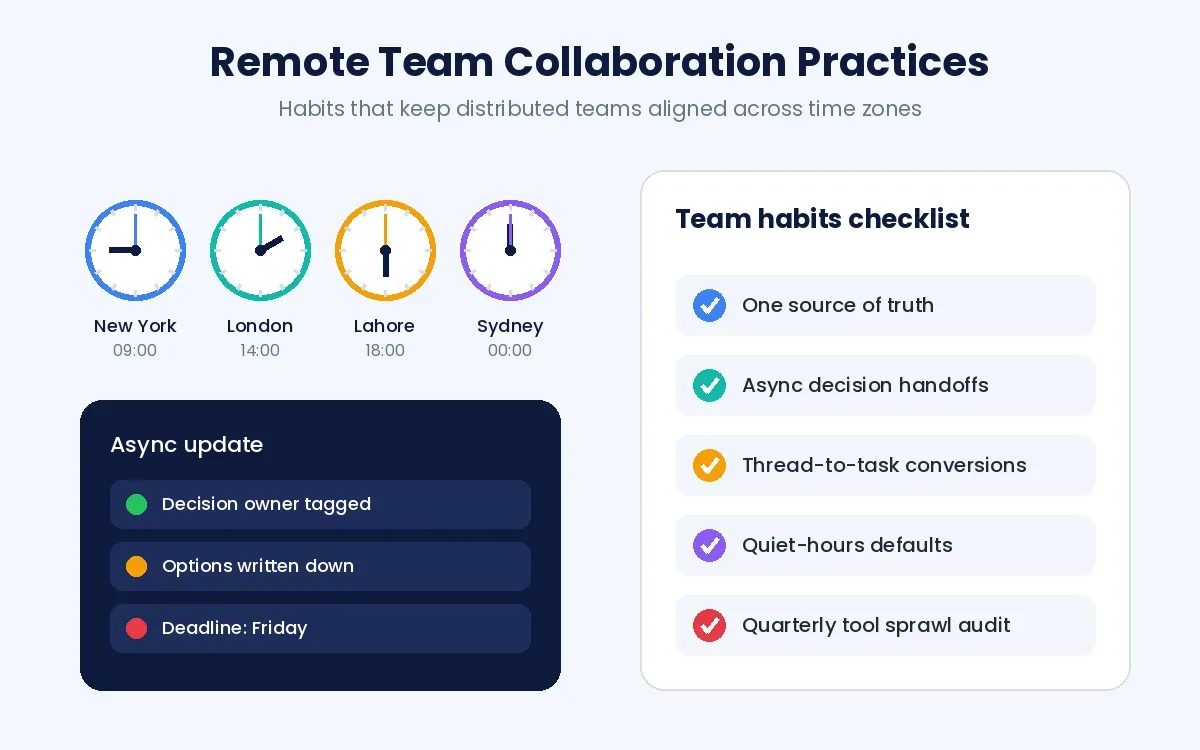
- Shared source-of-truth rituals decide where each type of information lives, such as decisions in the project tool, specs in the wiki, and quick questions in chat.
- Async decision handoffs record the question, the options, the owner, and the deadline in writing, so a teammate in another time zone can decide without a call.
- Thread-to-task conversions turn any chat thread that ends with "someone should do this" into a task with a named owner.
- Decision ownership tagging marks one person as the decider on every open question, which prevents a thread from stalling for days.
- Quiet-hours coordination defaults mute notifications outside each person's working hours and replace urgent pings with scheduled messages.
- Cross-timezone standup rituals swap the live daily call for a written update that each person posts at the start of their day.
- Knowledge handoff checkpoints require a short written summary when a task changes owners, which supports team memory preservation.
A quarterly tool sprawl audit closes the loop on these habits. List every app the team pays for, mark overlapping features, and review usage data alongside business criticality before cancelling anything. Some apps are opened rarely yet still matter, such as compliance archives, quarterly planning tools, or integrations that run in the background. This collaboration debt mapping keeps team workflow software lean as headcount grows.
How Do You Keep Collaboration Software Secure?
To keep collaboration software secure, apply 6 controls: SSO with MFA, role-based permissions, guest access limits, data retention rules, audit logging, and regular access reviews. Chat and file tools hold contracts, credentials, and client data, which makes them an attractive target for attackers.
The National Institute of Standards and Technology (NIST) advises organizations in Special Publication 800-46 to write a telework security policy that defines remote access requirements. Applying that thinking to collaboration apps means requiring MFA wherever the plan supports it and removing access the same day an employee or contractor leaves. Review guest accounts every quarter, since client users often keep access long after a project ends. Teams in healthcare, finance, or government should confirm where the vendor stores data and whether their plan includes the compliance terms their industry requires.
How Do You Measure Whether Collaboration Software Works?
Collaboration software works when 5 metrics improve: weekly active users, task cycle time, on-time delivery rate, meeting hours per person, and time to find information. Measure each one before rollout, then compare the numbers after 60 and 90 days.
A collaboration application is only as useful as the share of the team that opens it each week. Many companies set an internal target, such as 70% weekly active users after two months, while accepting that no universal benchmark exists. A shortfall is a cue to review training or fit. Cycle time tracks how long a task takes from creation to completion, while on-time delivery shows whether visibility is preventing late surprises. Meeting hours should fall as status moves onto shared boards, and a short survey can estimate how long people spend searching for files. For more ways to set targets, see these KPI examples that apply to project and operations teams.
How Is AI Changing Collaboration Tools?
AI is changing collaboration tools in 4 ways: meeting summaries, task generation from conversations, search across apps, and automated status reports. Most major products now include an assistant that reads threads, documents, and transcripts to draft the next step.
Generative AI drafts meeting notes, project briefs, and replies inside Zoom, Slack, Notion, and ClickUp. Assistants in Asana and Monday.com suggest subtasks, flag at-risk projects, and help balance workload across a team. An AI powered collaboration platform may run its own models, licensed third-party models, or a mix. The underlying AI model varies by vendor and feature. Output still needs human review before it reaches a client. Companies that want similar features inside their own products can add them through AI development.
When Should a Business Build Custom Collaboration Software?
A business should build custom collaboration software when off-the-shelf tools force daily workarounds, cannot meet compliance rules, or fail to connect with core internal systems. Common triggers include a client portal that must match a specific approval process, field teams that work offline, and workflows that span five or more apps.
Custom builds rarely replace chat or video platforms that already work well. They usually add a focused layer, such as a client portal, an internal dashboard, or an automation that moves data between a CRM and a project tool. O2SOFT builds this kind of layer through custom software development, following a delivery process that starts with a discovery workshop before any estimate. Before committing to any vendor, compare at least two proposals and ask each one how it will hand over code and documentation.
What Is the Difference Between Collaboration Tools and Team Building Tools?
Collaboration tools help a team do its daily work together, while team building tools help people build trust and relationships outside routine tasks. Team building tools include icebreaker apps, virtual game platforms, recognition software, and structured workshop formats such as problem-solving challenges. The two categories overlap when a whiteboard such as Miro hosts a retrospective or a chat app runs a recognition channel. Teams need both, since strong coordination depends on people who trust each other enough to ask questions early.
Choosing the Right Collaboration Stack
The right team collaboration tools give every type of information a defined home, whether that means one platform or a few connected products. Start with the bottleneck that slows your team today, test two or three options with a real project, and measure adoption after 60 days. Keep chat, video calls, task boards, shared documents, file storage, and integrations connected, then audit the stack every quarter so it stays lean. If no product fits your process, contact O2SOFT to scope a custom collaboration layer that works with the tools your team already uses.
Frequently Asked Questions
What are examples of team collaboration software?
Examples of team collaboration software include Slack for chat, Zoom for video, Asana for projects, Google Workspace for documents, Notion for wikis, and Miro for whiteboards. Most teams combine two to four of these apps in a single stack.
What is the best free collaboration tool?
The best free collaboration tool depends on the job, with Trello leading for simple task boards, Slack for chat, and Google Workspace personal accounts for document editing. Every free plan has limits, such as Slack's 90-day message history or Zoom's 40-minute group meetings.
Is there a product called Google Teams?
No, Google does not sell a product called Google Teams. Google Chat and Google Meet inside Google Workspace cover the same chat and meeting jobs that Microsoft Teams handles.
What are team coordination tools?
Team coordination tools are apps that schedule work, assign owners, and show who is available. Shared calendars, boards with timeline view, and resource scheduling in Wrike or ClickUp fall into this group. Shift-based teams often use dedicated scheduling apps such as WorkTime.
How many collaboration apps does a team need?
Most teams need 3 or 4 collaboration apps for teams: one for chat, one for meetings, one for projects, and one for files. Each extra app adds a login, a bill, and another place where information can hide.
Are team collaboration tools safe for client data?
Yes, team collaboration tools are safe for client data when the team enables SSO, MFA, role-based permissions, and guest access limits on a plan that supports them. Check the vendor's encryption and compliance documents before storing contracts or personal data.
What are the top collaboration platforms for remote teams?
The top collaboration platforms for remote teams are Slack or Microsoft Teams for communication, Zoom for meetings, Asana or ClickUp for projects, and Notion for documentation. These products support async updates for people working across time zones.